
Git Bash: How to Install and Use It on Windows

Hey, folks! In this guide I will show you what Git Bash is, how to install it on Windows and how to use it day to day. Git Bash is a terminal for Windows that gives you the git command plus a Bash shell and the usual Unix commands (ls, cd, grep, ssh...). It comes with Git for Windows, so to get Git Bash you install Git for Windows from git-scm.com and keep the default options.
Everything here was tested with Git for Windows 2.56.0(2), released on October 5, 2026, on Windows 11.
What is Git Bash?
Git was born on Linux and its command line tools expect a Unix-like environment. Windows has its own shells (Command Prompt and PowerShell), with different commands and conventions.
Git Bash brings that environment to Windows. When you install Git for Windows, you get:
- Git itself;
- Bash, the same shell used by default on most Linux distributions (Git for Windows 2.56 ships Bash 5.3);
- MinTTY, the terminal window Git Bash opens in;
- a set of Unix tools:
grep,sed,awk,find,curl,ssh,tar,less,nano,vimand others.
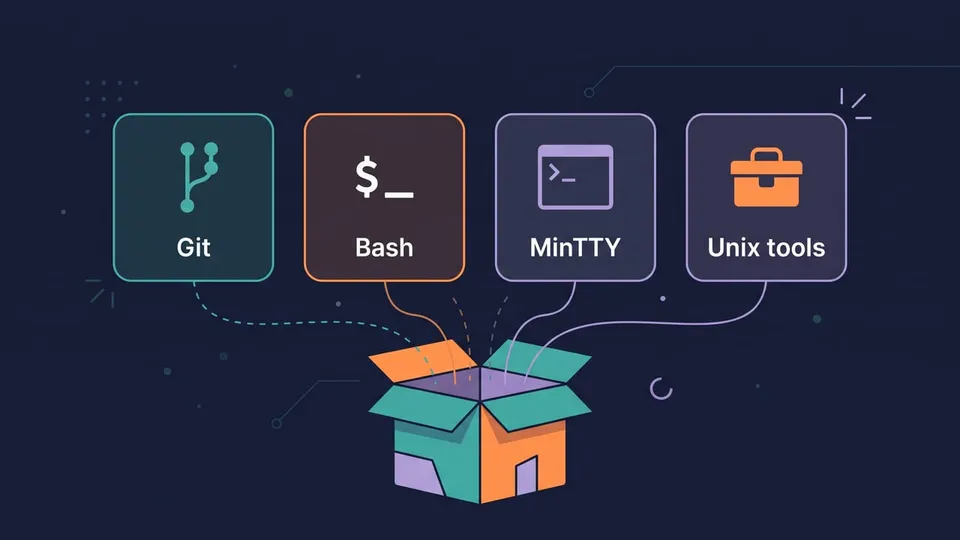
Under the hood it is based on MSYS2, a layer that lets these Unix programs run as regular Windows programs.
Is Git Bash Linux?
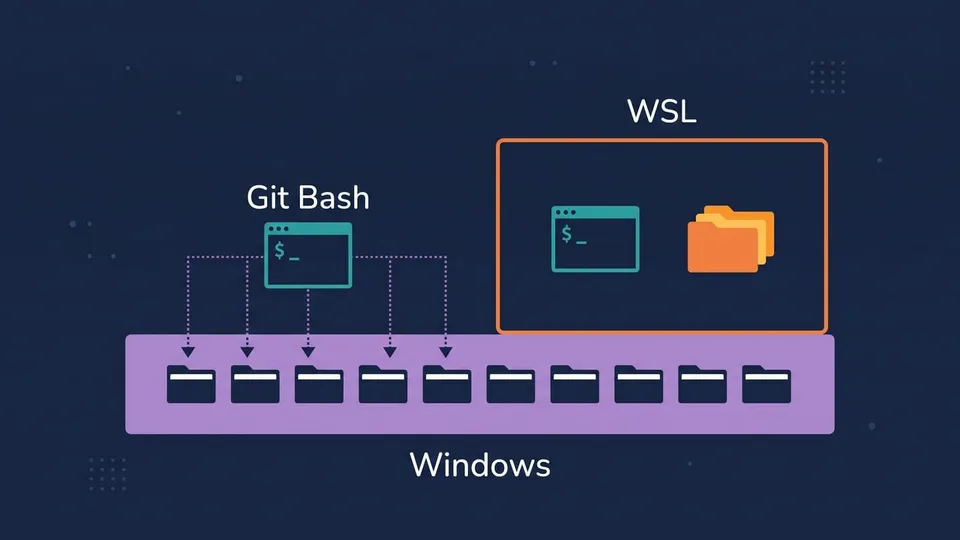
No. Git Bash runs Windows programs that behave like their Linux versions. It works on your Windows files directly and doesn't need a virtual machine, but it isn't a full Linux system: there's no package manager, and tools like make, wget, zip, rsync and tree are not included. If you need a real Linux environment, use WSL (see the comparison below).
How to install Git Bash on Windows
You need Windows 10 or later. Git for Windows 2.56 dropped support for Windows 8.1.
Option 1: The official installer
- Go to git-scm.com/install/windows and download the x64 Setup (or ARM64 Setup if your PC has an ARM processor).
- Run the installer and accept the license.
- On Select Components, keep the defaults. Windows Explorer integration > Open Git Bash here is checked by default and adds Git Bash to the right-click menu. I also recommend checking Add a Git Bash Profile to Windows Terminal, which is unchecked by default.
- On Choosing the default editor used by Git, pick an editor you know. The default is Vim, which is hard to use if you've never worked with it. If you use VS Code, choose it here. Nano and Notepad are also options.
- On Adjusting the name of the initial branch in new repositories, choose Override the default branch name and type
main. With Let Git decide,git initstill createsmaster(Git says this will change tomainin Git 3.0). - On Adjusting your PATH environment, keep Git from the command line and also from 3rd-party software (recommended). It lets you run
gitfrom Git Bash, Command Prompt, PowerShell and your editor. - On Configuring the line ending conversions, the default (Checkout Windows-style, commit Unix-style line endings) works for most people.
- On Configuring the terminal emulator to use with Git Bash, keep Use MinTTY.
- For the remaining screens (SSH executable, HTTPS backend,
git pullbehavior, credential helper, extra options), the defaults are fine. Click Install.
Tip: If you don't have admin rights on the machine, the installer can install Git for the current user only, or you can download the Portable version from the same page and unzip it anywhere.
Option 2: Install with winget
If you prefer the command line, open PowerShell or Command Prompt and run:
winget install --id Git.Git -e --source winget
Note: The Git.Git package in winget is not maintained by the Git for Windows project and can lag behind the official release. When I checked, winget had 2.55.0(5) while the latest release was 2.56.0(2).
Check the installation
Open Git Bash (next section) and run:
git --version
bash --version
You should see something like this:
git version 2.56.0.windows.2
GNU bash, version 5.3.15(2)-release (x86_64-pc-cygwin)
How to open Git Bash
There are a few ways:
- Start menu: type "Git Bash" and press Enter. It opens in your home folder (
C:\Users\<you>). - Right-click a folder: choose Open Git Bash here. On Windows 11 it's under Show more options (or press
Shift + F10), because the installer registers it in the classic context menu. - Windows Terminal: if you checked the profile option during the install, Git Bash shows up in the new tab dropdown.
- VS Code: see the VS Code section below.
The first thing you'll see is the prompt:
you@DESKTOP-PC UCRT64 ~
$
It shows your user, the computer name, the environment and the current folder (~ is your home folder). Older guides show MINGW64 in that spot. Since version 2.56, Git for Windows uses the UCRT64 environment, so the prompt says UCRT64, but nothing changes in how you use it.
How to use Git Bash: basic commands
Let's see the commands you'll use most. Commands are case-sensitive, and the Tab key autocompletes file names, folder names and even Git branch names.
Change directory in Git Bash (cd)
Git Bash uses Unix-style paths: forward slashes, and drives appear as folders under /. So C:\Users\you\Documents becomes /c/Users/you/Documents.
pwd                         # show the current folder
cd /c/Users/you/Documents   # go to a folder
cd ..                       # go up one level
cd ~                        # go to your home folder
cd -                        # go back to the previous folder
You can also paste a Windows path, as long as you wrap it in quotes (without quotes, Bash treats the backslashes as escape characters):
cd "C:\Users\you\Documents"
And to see the Windows version of the current folder, use pwd -W:
$ pwd
/c/Users/you
$ pwd -W
C:/Users/you
Git Bash commands for files and folders
| Git Bash | What it does | Command Prompt equivalent |
|---|---|---|
ls -la | List files, including hidden ones | dir /a |
mkdir my-project | Create a folder | mkdir my-project |
touch README.md | Create an empty file | type nul > README.md |
cp a.txt b.txt | Copy a file | copy a.txt b.txt |
mv a.txt docs/ | Move or rename | move a.txt docs\ |
rm a.txt | Delete a file | del a.txt |
rm -r docs | Delete a folder and its contents | rmdir /s docs |
cat hello.txt | Print a file | type hello.txt |
grep -rn "TODO" src | Search text in files | findstr /s /n "TODO" src\* |
clear | Clear the screen | cls |
Important! rm doesn't send files to the Recycle Bin. They're gone for good, so double-check before running rm -r.
A couple of extra ones that help on Windows:
explorer .   # open the current folder in File Explorer
code .       # open the current folder in VS Code (if it's installed)
Git commands in Git Bash
Of course, the main reason to use Git Bash is Git. Let's create a repository and make a first commit.
First, tell Git who you are (you only need to do this once):
git config --global user.name "Your Name"
git config --global user.email "[email protected]"
Now create a folder, initialize a repository and commit a file:
mkdir my-project && cd my-project
git init
echo "Hello, Git Bash" > README.md
git add .
git commit -m "First commit"
Did you notice the prompt changed? Git Bash shows the current branch in parentheses when you're inside a repository:
you@DESKTOP-PC UCRT64 ~/my-project (main)
$
From here you can use any Git command: git status, git log --oneline, git branch, git pull, git push. If you want to publish this repository on GitHub, I show every step in Git on Windows and GitHub: How to Install and Configure.
How to copy and paste in Git Bash
Ctrl + C and Ctrl + V don't copy and paste in Git Bash. In a terminal, Ctrl + C stops the running command. Use these instead:
- Copy: just select the text with the mouse. It's copied automatically. You can also use
Ctrl + Insert. - Paste:
Shift + Insert, or right-click and choose Paste.
Tip: If you want Ctrl + Shift + C and Ctrl + Shift + V, right-click inside the Git Bash window, choose Options, go to Keys and check Ctrl+Shift+letter shortcuts.
Use Git Bash in VS Code and Windows Terminal
VS Code
VS Code finds Git Bash on its own. To make it the default terminal:
- Open the Command Palette (
Ctrl + Shift + P). - Run Terminal: Select Default Profile.
- Choose Git Bash.
Or add this to your settings.json:
{
  "terminal.integrated.defaultProfile.windows": "Git Bash"
}
New terminals (Ctrl + `) will now open Git Bash. I cover a few more VS Code shortcuts in 5 Essential Productivity Tools in Web Development.
Windows Terminal
If you checked Add a Git Bash Profile to Windows Terminal during the install, Git Bash is already in the dropdown. To open it by default, go to Settings > Startup > Default profile and choose Git Bash. If the profile is missing, run the installer again and check that option.
Generate an SSH key in Git Bash
Git Bash comes with OpenSSH, so you can create the SSH key for GitHub (or GitLab, Bitbucket...) right there:
ssh-keygen -t ed25519 -C "[email protected]"
Press Enter to accept the default location (~/.ssh/id_ed25519) and type a passphrase. Then copy the public key to the clipboard:
clip < ~/.ssh/id_ed25519.pub
clip is a Windows command, and it works in Git Bash too. Now paste the key in your GitHub account under Settings > SSH and GPG keys. The GitHub docs have the full steps, including the ssh-agent setup.
How to update Git Bash
Git Bash updates together with Git for Windows. From Git Bash, run:
git update-git-for-windows
It prints Up to date or asks if you want to download and install the new version. You can also download the latest installer from git-scm.com and run it over the current install: it keeps your previous choices. If you installed with winget, use winget upgrade --id Git.Git.
Git Bash vs PowerShell vs CMD vs WSL
| Git Bash | PowerShell | Command Prompt | WSL | |
|---|---|---|---|---|
| Shell | Bash | PowerShell | cmd.exe | Bash (or any Linux shell) |
| Commands | Unix (ls, grep) | Cmdlets (Get-ChildItem), with aliases like ls | DOS-style (dir, copy) | Full Linux |
| Runs | Windows programs | Windows programs | Windows programs | Linux programs in a lightweight VM |
| Install | Comes with Git for Windows | Built into Windows | Built into Windows | wsl --install plus a Linux distro |
| Best for | Git and quick scripting on Windows | Windows administration and automation | Old .bat scripts | Linux tooling, Docker, server-like setups |
Git Bash vs PowerShell
Both can run Git. PowerShell is the better choice to manage Windows itself. Git Bash is better if you follow tutorials written for Mac or Linux, since their commands work as they are. Git's own hints and error messages also assume a POSIX shell, so copying them into PowerShell can fail.
Git Bash vs Git CMD
Git for Windows also installs Git CMD, which is just the Command Prompt with git in the PATH. You get Git, but not Bash or the Unix tools.
Git Bash vs WSL
WSL (Windows Subsystem for Linux) runs a real Linux distribution. Use it when you need Linux packages or want your machine to behave like the server you deploy to. Git Bash is lighter: there's no VM and no separate Linux file system, it works on your Windows files directly. You can also install both and use each one where it fits.
FAQ
Is Git Bash free?
Yes. Git for Windows is open source and free, and so are Bash, MinTTY and the other tools it bundles.
Why does my prompt say MINGW64 (or UCRT64)?
That's the name of the MSYS2 environment Git Bash runs in. Versions up to 2.55 show MINGW64, and 2.56 and later show UCRT64. It doesn't change how you use the terminal.
Can I run npm, Node.js or Python in Git Bash?
Yes, any program in your Windows PATH runs in Git Bash: node, npm, python, docker, code. Recent versions also run interactive programs, like the Node.js REPL, without the old winpty workaround. If you work with Node, you can follow my post on Node.js with TypeScript from Git Bash.
Where is Git Bash installed?
By default in C:\Program Files\Git. The launcher is C:\Program Files\Git\git-bash.exe, and your home folder in Git Bash (~) is C:\Users\<you>.
Conclusion
Git Bash gives you Git and a Unix-style terminal on Windows with a single installer, and with it you can follow Git tutorials written for Mac or Linux as they are. Pick your editor and the main branch during the install, make it the default terminal in VS Code, and you're ready to go. If you later need a full Linux environment, WSL can live alongside it.
See you next time!
Links
- Git for Windows
- Download Git for Windows
- Git for Windows release notes
- MinTTY
- VS Code: Terminal profiles
- What is WSL?
- Git logo by Jason Long, licensed under CC BY 3.0
Tags: git|productivity