
React Hook Form: Forms and Validation with Zod (2026)

Forms are where a lot of React code gets messy: one useState per field, onChange handlers everywhere, validation logic mixed with the JSX. React Hook Form cleans that up. In this post I will show you how to build forms with React Hook Form and TypeScript, validate them with the built-in rules or with a Zod schema, show error messages, and handle async submits.
The short version: call useForm(), spread register('fieldName') on each input, wrap your submit function with handleSubmit, and read validation errors from formState.errors. For anything beyond simple rules, pass zodResolver(schema) as the resolver option and keep all your validation in one Zod schema.

Note: I wrote the first version of this post in 2020, for React Hook Form v6. The API changed a lot since then, so I rewrote it from scratch. The examples here were tested with React 19.3, React Hook Form 7.90, Zod 4.6 and @hookform/resolvers 6.0.
Why React Hook Form?
React Hook Form works with uncontrolled inputs: the values live in the DOM, and the library reads them through refs. You don't need a state variable per field, and typing in one input doesn't re-render the whole form, which you notice on big forms.
Other reasons to use it:
- Validation is built in (
required,minLength,pattern,validate...), and you can plug in a schema library like Zod when you need more. - It's written in TypeScript, so field names and errors are typed.
- It has no dependencies and supports React 16.8 up to React 19.
Install React Hook Form
npm install react-hook-form
That's all you need for the first example. We will add Zod later.
Your first form: register and handleSubmit
Let's build a login form with email and password. Here is the complete component:
import { useForm } from 'react-hook-form'

type LoginFormValues = {
  email: string
  password: string
}

export function LoginForm() {
  const {
    register,
    handleSubmit,
    formState: { errors },
  } = useForm<LoginFormValues>({
    defaultValues: { email: '', password: '' },
  })

  function onSubmit(data: LoginFormValues) {
    console.log('Data submitted:', data)
  }

  return (
    <form onSubmit={handleSubmit(onSubmit)} noValidate>
      <label htmlFor="email">Email</label>
      <input id="email" type="email" {...register('email')} />

      <label htmlFor="password">Password</label>
      <input id="password" type="password" {...register('password')} />

      <button type="submit">Log in</button>
    </form>
  )
}
Let's see what each part does.
useForm
useForm creates the form. The generic <LoginFormValues> tells TypeScript which fields exist, so register('emial') is a type error. defaultValues sets the initial values. The docs recommend always passing it for the whole form, and avoiding undefined as a value.
register
register('email') returns the props the input needs (name, ref, onChange and onBlur), and the spread puts them on the input. That's how React Hook Form tracks the field.
Important! If you're coming from v6 (or from the old version of this post), the syntax changed in v7. It used to be <input name="email" ref={register()} />, and errors came straight from useForm(). Now it's {...register('email')}, and errors live in formState. The official migration guide lists the other changes.
handleSubmit
handleSubmit(onSubmit) returns the function that goes in the form's onSubmit. It prevents the page reload, validates every field, and only calls your onSubmit with the data when everything is valid. If something fails, it fills formState.errors and focuses the first invalid field.
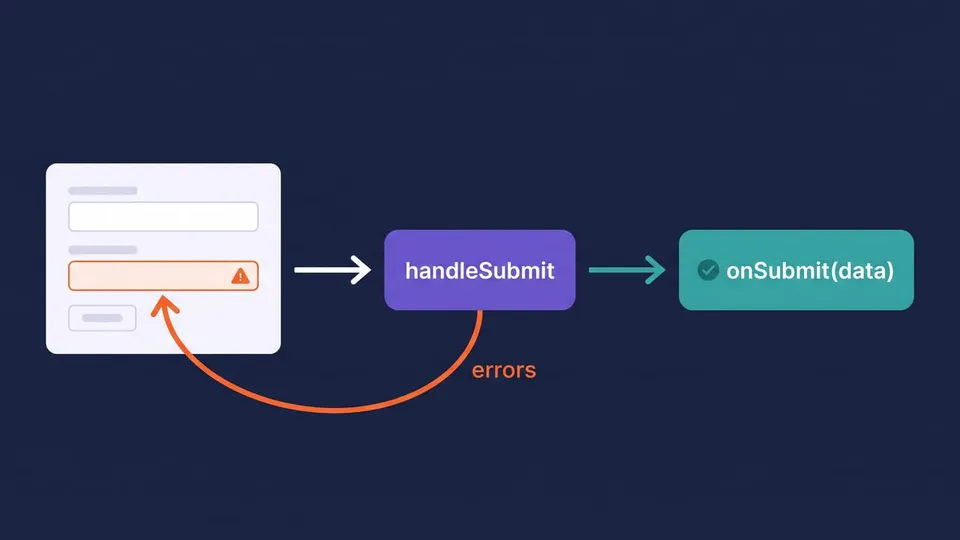
The noValidate attribute on the <form> turns off the browser's own validation popups, so the messages come only from React Hook Form.
React Hook Form validation with built-in rules
To validate a field, pass a rules object as the second argument of register. Each rule accepts the error message directly, or an object with value and message:
<input
  id="email"
  type="email"
  aria-invalid={errors.email ? 'true' : 'false'}
  {...register('email', {
    required: 'Enter your email',
    pattern: {
      value: /^[^\s@]+@[^\s@]+\.[^\s@]+$/,
      message: 'Enter a valid email address',
    },
  })}
/>
{errors.email && <p role="alert">{errors.email.message}</p>}

<input
  id="password"
  type="password"
  aria-invalid={errors.password ? 'true' : 'false'}
  {...register('password', {
    required: 'Enter your password',
    minLength: { value: 8, message: 'Use at least 8 characters' },
  })}
/>
{errors.password && <p role="alert">{errors.password.message}</p>}
The available rules are required, min, max, minLength, maxLength, pattern and validate. That last one takes a custom function (it can be async), and you return true or an error message.
errors.email exists only when the email field is invalid, so errors.email && ... shows the message right below the field. I also set aria-invalid and role="alert", so screen readers announce the error. You can use the same errors object to add a CSS class and give invalid fields a red border.
Tip: since v7.88 the library has an <ErrorMessage /> component, so <ErrorMessage control={control} name="email" as="p" /> does the same as the errors.email && ... line. It used to live in the separate @hookform/error-message package.
When does validation run? The mode option
By default, fields are validated on submit, and after the first submit each invalid field is checked again as the user types. You can change that with the mode option:
useForm<LoginFormValues>({
  mode: 'onTouched',
})
The options are onSubmit (the default), onBlur, onChange, onTouched and all. onTouched is a good default: it validates when the user leaves a field, and then on every change, so nobody sees an error while still typing their email for the first time. The docs warn that onChange causes more re-renders, so use it only when you need it.
React Hook Form with Zod
Built-in rules are fine for a login form. Once you have rules that depend on each other ("passwords must match"), or you want the same rules on the server, a schema is easier to maintain. React Hook Form supports Zod, Yup, Valibot and others through resolvers.
Install Zod and the resolvers package:
npm install zod @hookform/resolvers
Then describe the form in a schema. Let's make a sign-up form:
// schema.ts
import { z } from 'zod'

export const signupSchema = z
  .object({
    name: z.string().trim().min(1, 'Enter your name'),
    email: z.email('Enter a valid email address'),
    password: z.string().min(8, 'Use at least 8 characters'),
    confirmPassword: z.string(),
  })
  .refine((data) => data.password === data.confirmPassword, {
    error: 'Passwords do not match',
    path: ['confirmPassword'],
  })

export type SignupFormValues = z.infer<typeof signupSchema>
A few things to notice:
z.email()is the Zod 4 way. The oldz.string().email()still works but is deprecated..refine()checks the whole object, andpathsays which field gets the error. That's how "Passwords do not match" ends up under the confirmation field.- In Zod 4 the message option is
error. Themessageoption from Zod 3 still works but is deprecated. z.infercreates the TypeScript type from the schema, so you don't write the type twice.
Now connect the schema to the form with zodResolver:
import { useForm } from 'react-hook-form'
import { zodResolver } from '@hookform/resolvers/zod'
import { signupSchema, type SignupFormValues } from './schema'

export function SignupForm() {
  const {
    register,
    handleSubmit,
    formState: { errors },
  } = useForm<SignupFormValues>({
    resolver: zodResolver(signupSchema),
    mode: 'onTouched',
    defaultValues: { name: '', email: '', password: '', confirmPassword: '' },
  })

  // ...
}
With a resolver, you don't pass rules to register anymore. The inputs are just {...register('email')}, and the errors show up in formState.errors the same way as before.
Note: if your schema uses .transform(), .default() or coercion, the input and output types are different. In that case either let useForm infer the types from the resolver (no generic), or pass all three: useForm<z.input<typeof schema>, unknown, z.output<typeof schema>>(). The resolvers README explains it.
You can also reuse the same signupSchema to validate the request body in your API (with signupSchema.safeParse(body)), so client and server agree on the rules. Client-side validation is a nice user experience, but only the server check protects your data.

Async submit, server errors and reset
Real forms send data to an API. React Hook Form supports async onSubmit functions, and formState tells you what's going on. Here is the complete sign-up form:
import { useEffect } from 'react'
import { useForm } from 'react-hook-form'
import { zodResolver } from '@hookform/resolvers/zod'
import { signupSchema, type SignupFormValues } from './schema'

export function SignupForm() {
  const {
    register,
    handleSubmit,
    reset,
    setError,
    formState: { errors, isSubmitting, isSubmitSuccessful },
  } = useForm<SignupFormValues>({
    resolver: zodResolver(signupSchema),
    mode: 'onTouched',
    defaultValues: { name: '', email: '', password: '', confirmPassword: '' },
  })

  async function onSubmit(data: SignupFormValues) {
    const response = await fetch('/api/signup', {
      method: 'POST',
      headers: { 'Content-Type': 'application/json' },
      body: JSON.stringify(data),
    })

    if (!response.ok) {
      setError('root.serverError', {
        type: String(response.status),
        message: 'Could not create your account. Try again.',
      })
    }
  }

  useEffect(() => {
    if (isSubmitSuccessful) {
      reset()
    }
  }, [isSubmitSuccessful, reset])

  return (
    <form onSubmit={handleSubmit(onSubmit)} noValidate>
      <label htmlFor="name">Name</label>
      <input id="name" {...register('name')} />
      {errors.name && <p role="alert">{errors.name.message}</p>}

      <label htmlFor="email">Email</label>
      <input id="email" type="email" {...register('email')} />
      {errors.email && <p role="alert">{errors.email.message}</p>}

      <label htmlFor="password">Password</label>
      <input id="password" type="password" {...register('password')} />
      {errors.password && <p role="alert">{errors.password.message}</p>}

      <label htmlFor="confirmPassword">Confirm password</label>
      <input id="confirmPassword" type="password" {...register('confirmPassword')} />
      {errors.confirmPassword && <p role="alert">{errors.confirmPassword.message}</p>}

      {errors.root?.serverError && <p role="alert">{errors.root.serverError.message}</p>}

      <button type="submit" disabled={isSubmitting}>
        {isSubmitting ? 'Creating account...' : 'Sign up'}
      </button>
    </form>
  )
}
Here is what changed from the first example:
isSubmittingistruewhile the asynconSubmitruns. Disabling the button with it stops double clicks from sending the form twice. (The server should still handle repeated requests. I covered that in Idempotency in APIs.)setError('root.serverError', ...)adds an error that doesn't belong to any field, like a failed request. It shows up inerrors.root.serverError, and it's cleared on the next submit. CallingsetErroralso marks the submit as not successful.reset()puts the form back to itsdefaultValues. The docs recommend calling it in auseEffectthat watchesisSubmitSuccessful, not insideonSubmit, because the order of the state updates matters.
So when the API fails, the user sees the message and keeps what they typed. When it succeeds, the form is cleared.
Watching values and controlled components
Two more APIs you'll need sooner or later.
watch reads a field's current value and re-renders when it changes. It's handy for showing or hiding parts of the form:
const { register, watch } = useForm<{ newsletter: boolean; topics: string }>()
const newsletter = watch('newsletter')

return (
  <>
    <input type="checkbox" {...register('newsletter')} />
    {newsletter && <input {...register('topics')} />}
  </>
)
Controller is for components that don't expose a ref to a native input, like many date pickers, selects and UI kit components. Controller connects them to the form through the value/onChange props:
import { Controller, useForm } from 'react-hook-form'

const { control } = useForm<{ country: string }>()

<Controller
  name="country"
  control={control}
  rules={{ required: 'Choose a country' }}
  render={({ field }) => <CountrySelect {...field} />}
/>
field has value, onChange, onBlur, name and ref. If the component uses other prop names, pass them one by one instead of spreading.
FAQ
Is React Hook Form better than Formik?
For most new projects, React Hook Form is the better choice. It re-renders less because it works with uncontrolled inputs, it has built-in validation and resolvers for schema libraries, and it's actively maintained (v7.90 came out in October 2026). Formik still works, but it uses controlled inputs, which means a re-render on every keystroke.
Do I need Zod to use React Hook Form?
No. The built-in rules (required, pattern, minLength, validate...) cover simple forms. Zod pays off when fields depend on each other, when you want the TypeScript type from the same source, or when you want to reuse the rules on the server.
Does React Hook Form work with React 19?
Yes. Version 7 lists React 16.8 to 19 as supported peer dependencies, and the examples in this post run on React 19.3. React Hook Form v8 is in beta, so v7 is still the version to use in production.
How do I reset the form after submit?
Call reset() in a useEffect that depends on formState.isSubmitSuccessful. reset() with no arguments goes back to defaultValues; reset(values) sets new values (and they become the new defaults).
Conclusion
React Hook Form keeps form code short: register the fields, wrap the submit with handleSubmit, and read formState for errors and submit status. Start with the built-in rules, and move to a Zod schema when the rules grow or you want to share them with the backend.
If you're setting up a TypeScript project for the API side, see Node.js with TypeScript.
Links
- React Hook Form documentation
- register API
- setError API
- Controller API
- ErrorMessage component
- React Hook Form changelog
- React Hook Form resolvers
- Zod API
Tags: react|typescript