
Bash Scripting: Variables, If/Else, Loops and Functions

A Bash script is a text file with the commands you would type in the terminal, saved so you can run them again with one command. As a developer, you probably already have a few of these chores: set up a project, check the branch before a release, rename a batch of files. In this post I will show you the parts of Bash scripting you need to automate them: variables, if/else, for and while loops, functions and exit codes. The short version: start the file with #!/usr/bin/env bash, make it executable with chmod +x script.sh, and run it with ./script.sh. Inside it, you create variables with name="value" (no spaces around =), test conditions with if [[ ... ]]; then ... fi, repeat with for item in list; do ... done, and group commands in functions with name() { ... }.

Note: I ran every example in this post with GNU Bash 5.3.15 (Git Bash on Windows 11) and 5.2.21 (Ubuntu on WSL), and the outputs below are the real ones.
How to write a Bash script
Let's create the classic first script. Make a file called hello.sh:
#!/usr/bin/env bash
echo "Hello from $(whoami) on $(date +%Y-%m-%d)"
Make it executable and run it:
chmod +x hello.sh
./hello.sh
Hello from you on 2026-10-29
chmod +x gives the file permission to run, and ./ tells the shell the file is in the current folder (the current folder isn't in your PATH). You can also skip chmod and run bash hello.sh.
What the shebang does
The first line, #!/usr/bin/env bash, is the shebang. When you run ./hello.sh, the system reads it to know which program should interpret the file. You'll also see #!/bin/bash, which points to a fixed path. #!/usr/bin/env bash uses the first bash in your PATH, which matters on macOS: since Catalina the default shell there is zsh, and the /bin/bash that comes with the system is still Bash 3.2.57, because newer versions use a license (GPLv3) that Apple doesn't ship. If you install Bash 5.3 with Homebrew (brew install bash), env finds it.
Tip: On Windows, the easiest way to follow this post is Git Bash, which comes with Git for Windows. I show how to install it in Git Bash: How to Install and Use It on Windows. WSL works too.
Bash variables
You create a variable with name=value, with no spaces around the =. With spaces, Bash thinks name is a command. To read the value, put a $ before the name:
name="Ana"
greeting="Hello, $name"
echo "$greeting"
echo 'Hello, $name'
Hello, Ana
Hello, $name
Double quotes expand variables, single quotes keep the text exactly as it is.
When the variable name is followed by letters, numbers or _, use braces so Bash knows where the name ends:
file="report"
echo "${file}_2026.txt"   # report_2026.txt
echo "$file_2026.txt"     # .txt (Bash looked for a variable called file_2026)
Always quote your variables
Without quotes, Bash splits the value on spaces (and expands * and ? too):
file="my report.txt"
touch "$file"
ls -l $file
ls -l "$file"
ls: cannot access 'my': No such file or directory
ls: cannot access 'report.txt': No such file or directory
-rw-r--r-- 1 you 197121 0 Oct 29 08:38 my report.txt
Write "$var" unless you have a reason not to.
Command substitution and arithmetic
$(command) runs a command and gives you its output. $(( )) does integer math:
today=$(date +%Y-%m-%d)
count=5
total=$((count * 2 + 1))
((count++))
echo "$today $total $count"
echo $((7 / 2))
2026-10-29 11 6
3
Bash only does integer math, so 7 / 2 is 3. For decimals, call another tool like awk or bc.
Script arguments and default values
Arguments you pass to a script arrive as $1, $2 and so on. $# is how many there are, $@ is all of them, and $0 is the script name. The ${1:-development} form uses a default value when $1 is empty:
#!/usr/bin/env bash
env_name=${1:-development}
echo "Deploying to $env_name"
echo "Script: $0 | first arg: $1 | arg count: $#"
$ ./deploy.sh staging
Deploying to staging
Script: ./deploy.sh | first arg: staging | arg count: 1
$ ./deploy.sh
Deploying to development
Script: ./deploy.sh | first arg:  | arg count: 0
To loop over the arguments, use "$@" with quotes, so an argument like "two words" stays one item (we'll see for loops below).
Environment variables and reading input
A normal variable exists only in the current script. export turns it into an environment variable, which programs started by the script can read:
export NODE_ENV=production
npm run build   # Node sees process.env.NODE_ENV === 'production'
To ask the user for a value, use read:
read -r -p "Project name: " project
echo "Creating $project..."
-p shows the prompt and -r keeps backslashes as they are. Use -r every time.
Bash if else statement
The basic form is if, then elif for more conditions, else for everything else, and fi to close:
#!/usr/bin/env bash
branch=$(git branch --show-current 2>/dev/null)

if [[ "$branch" == "main" ]]; then
  echo "You are on main. Be careful!"
elif [[ -z "$branch" ]]; then
  echo "Not a Git repository"
else
  echo "You are on $branch"
fi
Run inside a repository on main it prints You are on main. Be careful!, and in a folder without Git it prints Not a Git repository.
How if works: exit codes
if doesn't evaluate a boolean expression. It runs a command and checks its exit status: 0 means success (the then branch), anything from 1 to 255 means failure (the else branch).
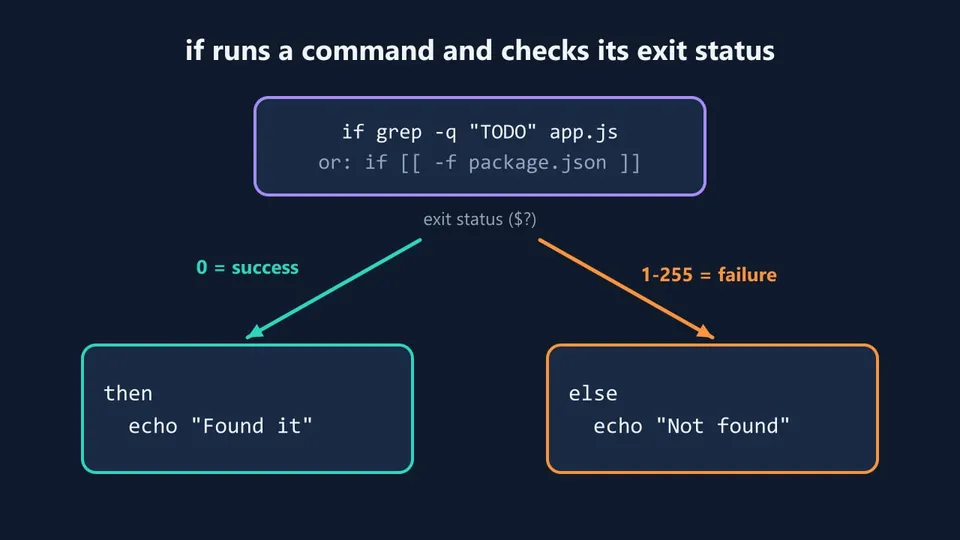
[[ ... ]] is also a command that returns 0 or 1. That's why you can put any command after if:
if grep -q "TODO" app.js; then
  echo "Found a TODO"
fi

if ! command -v docker >/dev/null; then
  echo "Docker is not installed"
fi
grep -q returns 0 when it finds the text, and command -v returns 0 when the program exists. The ! inverts the result.
[[ ]] vs [ ] vs (( ))
You'll see three forms in scripts:
[ ... ]is the oldtestcommand, which also works insh. Variables inside it need quotes, or an empty one breaks the test:[ $name = "admin" ]with an emptynamefails with[: =: unary operator expected.[[ ... ]]is the Bash version. It doesn't split variables on spaces, and it adds pattern matching with==and regular expressions with=~. Use it in Bash scripts.(( ... ))is for numbers:if (( files > 10 )); then.
Important! Inside [[ ]], > and < compare strings, not numbers. [[ 9 > 10 ]] is true, because "9" comes after "1". For numbers, use (( 9 > 10 )) or -gt.
Pattern matching and regex in action:
if [[ "report.pdf" == *.pdf ]]; then
  echo "It's a PDF"
fi

if [[ "v2.13.0" =~ ^v([0-9]+)\.([0-9]+) ]]; then
  echo "major=${BASH_REMATCH[1]} minor=${BASH_REMATCH[2]}"
fi
It's a PDF
major=2 minor=13
Common test operators
| Test | True when |
|---|---|
[[ "$a" == "$b" ]] | Strings are equal (!= for different) |
[[ -z "$var" ]] | Variable is empty |
[[ -n "$var" ]] | Variable is not empty |
[[ -f file ]] | File exists (and is a regular file) |
[[ -d dir ]] | Directory exists |
[[ -e path ]] | Anything exists at that path |
[[ -x file ]] | File is executable |
(( a == b )), (( a > b )) | Numeric comparison |
[ "$a" -eq "$b" ] | Numeric comparison in [ ] (-ne, -lt, -le, -gt, -ge) |
You can combine tests with && and ||, inside [[ ]] or between commands. A common shortcut is a one-line check:
[[ -f package.json ]] || { echo "No package.json here"; exit 1; }
Bash case statement
When you compare one value against several options, case reads better than a chain of elif:
#!/usr/bin/env bash
case "$1" in
  start)
    echo "Starting the app..."
    ;;
  stop | halt)
    echo "Stopping the app..."
    ;;
  *.log)
    echo "Reading log file $1"
    ;;
  *)
    echo "Usage: $0 {start|stop|<file>.log}"
    exit 1
    ;;
esac
Each option ends with ;;, | matches more than one value, and the patterns are globs, so *.log matches any log file and * catches everything else.
Bash for loop
The for loop runs the same commands once for each item in a list:
for env in dev staging prod; do
  echo "Deploying to $env"
done
Deploying to dev
Deploying to staging
Deploying to prod
Ranges and C-style loops
For a range of numbers, use brace expansion. A third number sets the step:
for i in {1..5}; do echo -n "$i "; done    # 1 2 3 4 5
for i in {0..10..5}; do echo -n "$i "; done # 0 5 10
Braces don't accept variables ({1..$n} doesn't work). When the limit comes from a variable, use the C-style loop:
retries=3
for ((i = 0; i < retries; i++)); do
  echo "Attempt $i"
done
Loop through files
To loop over files, use a glob directly. Don't loop over the output of ls:
for file in images/*.png; do
  echo "Optimizing $file"
done
Optimizing images/cat photo.png
Optimizing images/logo.png
With for file in $(ls images), the file cat photo.png would become two items, cat and photo.png. The glob keeps each file name whole.
Note: If no file matches, the loop runs once with the literal text images/*.png. Add shopt -s nullglob at the top of the script to make a glob with no matches expand to nothing.
break and continue
continue skips to the next item, and break leaves the loop:
for n in {1..10}; do
  if (( n % 2 == 0 )); then continue; fi
  if (( n > 7 )); then break; fi
  echo -n "$n "
done
1 3 5 7
Bash while loop (and until)
while repeats as long as its command succeeds:
count=3
while (( count > 0 )); do
  echo "Launching in $count..."
  ((count--))
done
Read a file line by line
The most useful while loop in practice reads a file one line at a time. Here it parses a .env file, skipping blank lines and comments:
while IFS='=' read -r key value; do
  [[ -z "$key" || "$key" == \#* ]] && continue
  echo "key=$key value=$value"
done < .env.example
key=DB_HOST value=localhost
key=DB_PORT value=5432
key=API_KEY value=abc 123
IFS='=' tells read to split each line at the =, and < .env.example sends the file into the loop. The same pattern works with command output: git log --format='%h %s' | while read -r hash message; do ... done.
until
until is the opposite of while: it repeats until the command succeeds. It fits "wait for something" loops, like waiting for a server to come up:
attempt=1
until curl -sf http://localhost:3000/health >/dev/null || (( attempt > 10 )); do
  echo "Waiting for the server... ($attempt)"
  sleep 2
  ((attempt++))
done
Bash arrays
A list of values goes in an array. Always expand it as "${array[@]}", with quotes, so items with spaces stay whole:
services=("api" "web" "worker")
services+=("cron")

echo "${#services[@]} services, first is ${services[0]}"

for service in "${services[@]}"; do
  echo "Restarting $service"
done
4 services, first is api
Restarting api
Restarting web
Restarting worker
Restarting cron
Bash 4 and later also have associative arrays (key/value, like a JavaScript object):
declare -A ports=([api]=3000 [web]=8080)
ports[worker]=9000

for name in "${!ports[@]}"; do
  echo "$name -> ${ports[$name]}"
done
"${!ports[@]}" gives you the keys. Don't count on the order: Bash doesn't keep keys in the order you added them.
Bash functions
A function groups commands under a name. You define it before you use it, and you call it like any other command, without parentheses:
greet() {
  local name="$1"
  local greeting="${2:-Hello}"
  echo "$greeting, $name!"
}

greet "Ana"
greet "Ben" "Hi"
Hello, Ana!
Hi, Ben!
Function arguments
Inside a function, $1, $2, $# and $@ are the function's arguments, not the script's. That's why the example above copies them into named variables right at the start: greet reads better with $name than with $1.
Use local variables
In Bash, every variable is global unless you say otherwise. Without local, a function overwrites variables of the rest of the script:
counter=10
bump() { counter=99; }
bump
echo "$counter"   # 99
With local, the variable exists only inside the function:
counter=10
safe_bump() { local counter=1; echo "inside: $counter"; }
safe_bump
echo "outside: $counter"   # outside: 10
Make local a habit for every variable you create inside a function.
Bash function return value
If you come from another language, this one is easy to get wrong: return doesn't return data. It sets the function's exit status, a number from 0 to 255, the same thing if checks:
add() { return $(( $1 + $2 )); }

add 2 3; echo "2 + 3 = $?"
add 200 100; echo "200 + 100 = $?"
2 + 3 = 5
200 + 100 = 44
300 doesn't fit, so it wraps around to 44. To get a value out of a function, print it with echo and capture it with $(...). Use return (or the status of the last command) only for success or failure.
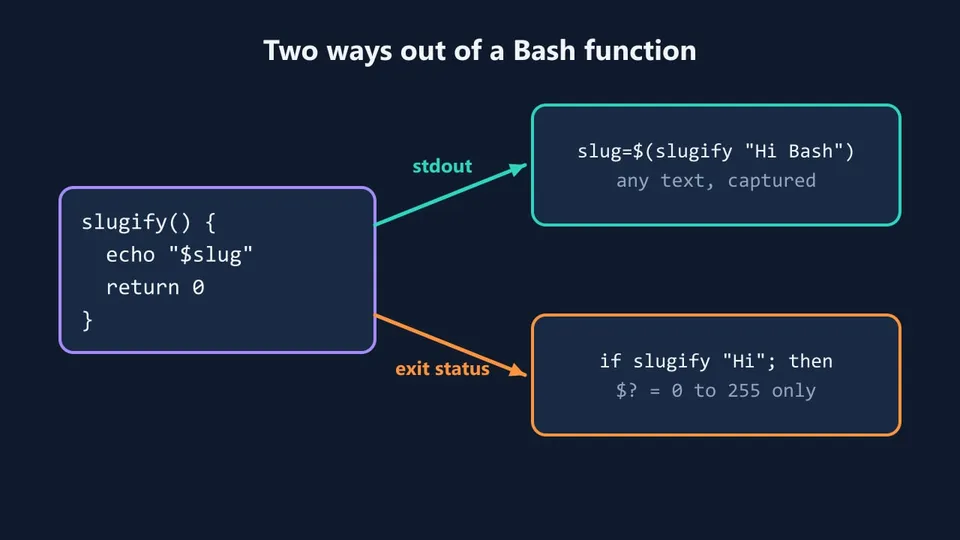
Both in practice:
slugify() {
  local text="${1,,}"    # lowercase
  echo "${text// /-}"    # replace spaces with dashes
}

is_installed() {
  command -v "$1" >/dev/null 2>&1
}

slug=$(slugify "Hello Bash World")
echo "$slug"   # hello-bash-world

if is_installed git; then
  echo "git is installed"
fi
is_installed doesn't need return: a function's exit status is the status of its last command.
Note: Bash 5.3 added ${ command; }, a form of command substitution that captures the output without starting a subshell. It's handy, but Bash 5.2 and older (and the 3.2 on macOS) don't understand it. In scripts other people will run, $(...) is the safer choice.
Exit codes and error handling
Every command sets $?, and your script should set one too. Use exit 0 for success and exit 1 (or another number up to 255) for errors, so CI pipelines and other scripts know it failed. Send error messages to stderr with >&2:
die() {
  echo "Error: $*" >&2
  exit 1
}

[[ -d src ]] || die "src folder not found"
set -euo pipefail
By default, Bash keeps running after a command fails. Many scripts start with this line to change that:
set -euo pipefail
-e: exit as soon as a command fails.-u: treat a variable that was never set as an error, which catches typos like$usreinstead of$user.-o pipefail: make a pipeline fail when any command in it fails, not only the last one.
#!/usr/bin/env bash
set -euo pipefail
echo "before"
cat missing.txt | sort
echo "never printed"
before
cat: missing.txt: No such file or directory
Without pipefail, sort would succeed and the script would print never printed. It isn't perfect: -e is ignored in some places, like inside an if condition or a command followed by ||, so keep explicit checks for the things that matter.
Clean up with trap
trap runs a command when the script exits, even after an error. It's the place to remove temporary files:
#!/usr/bin/env bash
set -euo pipefail

tmp_dir=$(mktemp -d)
trap 'rm -rf "$tmp_dir"' EXIT

echo "Working in $tmp_dir"
# ... if anything fails here, the folder is still removed
Debug a script
Run it with bash -x to print each command, with variables already expanded, before it runs:
$ bash -x debug.sh
+ name=world
+ echo 'Hello, world'
Hello, world
You can also turn it on for a part of the script with set -x and off with set +x.
A real Bash script example
Let's put everything together in a script you could use in a real project: release.sh checks that the repository is ready, calculates the next version from package.json and creates a Git tag.
#!/usr/bin/env bash
# Usage: ./release.sh patch|minor|major
set -euo pipefail

die() {
  echo "Error: $*" >&2
  exit 1
}

require() {
  local cmd
  for cmd in "$@"; do
    command -v "$cmd" >/dev/null 2>&1 || die "$cmd is not installed"
  done
}

next_version() {
  local current="$1" part="$2"
  local major minor patch
  IFS='.' read -r major minor patch <<< "$current"

  case "$part" in
    major) echo "$((major + 1)).0.0" ;;
    minor) echo "$major.$((minor + 1)).0" ;;
    patch) echo "$major.$minor.$((patch + 1))" ;;
    *) die "unknown part '$part' (use patch, minor or major)" ;;
  esac
}

part="${1:-patch}"
require git node

[[ -f package.json ]] || die "run this in a folder with package.json"

if [[ -n "$(git status --porcelain)" ]]; then
  die "you have uncommitted changes"
fi

branch=$(git branch --show-current)
if [[ "$branch" != "main" ]]; then
  die "releases go out from main (you are on $branch)"
fi

current=$(node -p "require('./package.json').version")
next=$(next_version "$current" "$part")

echo "Current version: $current"
echo "Next version:    $next"
read -r -p "Create tag v$next? [y/N] " answer

if [[ "$answer" =~ ^[Yy]$ ]]; then
  git tag "v$next"
  echo "Tagged v$next. Push it with: git push origin v$next"
else
  echo "Nothing changed."
fi
Running it in a test repository with version 1.4.2:
$ ./release.sh minor
Current version: 1.4.2
Next version:    1.5.0
Create tag v1.5.0? [y/N] y
Tagged v1.5.0. Push it with: git push origin v1.5.0

$ ./release.sh huge
Error: unknown part 'huge' (use patch, minor or major)

$ git switch -c feature
$ ./release.sh
Error: releases go out from main (you are on feature)
It uses almost everything from this post: variables with defaults, [[ ]] tests with -f, -n and =~, a case, a for loop, functions with local, read, exit codes and set -euo pipefail. It also checks the state before changing anything, so you can run it again safely after a failure, an idea I explain in Idempotency: What It Is and Why It Matters.
Tip: Before you commit a script, run it through ShellCheck. It catches missing quotes, ls loops and other common mistakes, and explains each one. You can paste the script on the site, install it with your package manager, or run it without installing with npx shellcheck script.sh. The script above passes with no warnings on ShellCheck 0.11.0.
FAQ
Is Bash the same as sh?
No. sh is the POSIX shell standard, and on many Linux systems /bin/sh is a smaller shell like dash. Bash supports everything sh does plus extras like [[ ]], arrays and (( )). If your script uses them, start it with a Bash shebang and run it with bash, not sh.
Do Bash scripts work in zsh?
Mostly, but not always: zsh handles arrays and word splitting differently. Because of the shebang, a script with #!/usr/bin/env bash runs with Bash even if your terminal uses zsh, so you don't need to worry about it.
How do I check if a variable is empty in Bash?
Use [[ -z "$var" ]], which is true when the variable is empty or unset. [[ -n "$var" ]] is the opposite. With set -u, reading a variable that was never set is an error, so use "${var:-}" when the variable may not exist.
Can I write Bash scripts on Windows?
Yes. Git Bash and WSL both run them. Save the file with Unix line endings (LF). Git Bash tolerates Windows line endings (CRLF), but the same file fails on WSL, Linux servers and CI with errors like $'ls\r': command not found. In VS Code you can switch the line endings in the status bar.
Conclusion
Bash scripting comes down to a few pieces: variables (with quotes), if and case that check exit codes, for and while loops, and functions with local variables that print their results instead of returning them. Add set -euo pipefail and a trap for cleanup, run ShellCheck, and your scripts will stop at the first error and tell you why.
A good way to start is to take a sequence of commands you type every week and turn it into a script. If you're on Windows, set up Git Bash first, and if your scripts work with Git, my post on Git on Windows and GitHub covers the setup.
Links
- GNU Bash Reference Manual
- Bash manual: Conditional Constructs
- Bash manual: Looping Constructs
- Bash manual: Shell Functions
- Bash manual: The Set Builtin
- ShellCheck
- Apple: Use zsh as the default shell on your Mac
- Bash logo © Free Software Foundation, licensed under the Free Art License
Tags: bash|productivity