
Git Rename Branch and Delete Branch (Local and Remote)

Hey, folks! In this post I will show you how to rename a Git branch and how to delete a Git branch, both on your machine and on the remote (GitHub, GitLab, etc.). The short answer: git branch -m new-name renames the current branch, git branch -d branch-name deletes a local branch, and git push origin --delete branch-name deletes it on the remote. A remote branch can't be renamed in place, so for that you push the new name and delete the old one.

Everything here was tested with Git 2.56 on Windows 11 (in Git Bash). The commands are the same on macOS and Linux.
Local, remote and remote-tracking branches
Before the commands, it helps to know that a branch you pushed exists in three places:
- the local branch (
feature/login), the one you commit to; - the remote branch, on the server (GitHub, GitLab, Bitbucket);
- the remote-tracking branch (
origin/feature/login), a local copy of what Git last saw on the remote.git fetchupdates it.
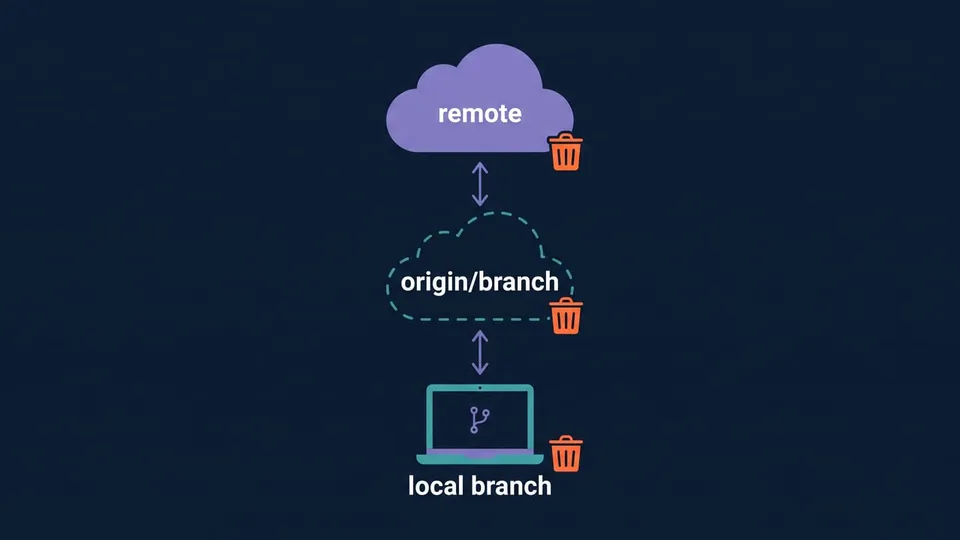
Each command in this post changes one of them. Deleting the local branch doesn't touch the remote, and deleting the remote branch doesn't touch your local copy, so a branch you deleted can still show up somewhere else.
You can see all three with git branch -a:
$ git branch -a
* feature/login
  main
  remotes/origin/feature/login
  remotes/origin/main
How to rename a local branch in Git
To rename the branch you're on, use git branch -m with the new name:
git branch -m feature/login
To rename another branch, pass the old name first and the new name after:
git branch -m old-name new-name
-m is short for --move. Git renames the branch along with its config and its reflog, so the history of where the branch pointed comes along.
If a branch with the new name already exists, Git refuses:
$ git branch -m feature/login other
fatal: a branch named 'other' already exists
-M (capital) forces the rename and replaces the existing branch. Only use it if you really want to throw away the other branch.
Tip: To change a branch name, always use git branch -m. git switch and git checkout have no rename option.
How to rename a remote branch
There's no command to rename a branch on the remote. What you do is push the branch under the new name and delete the old one.
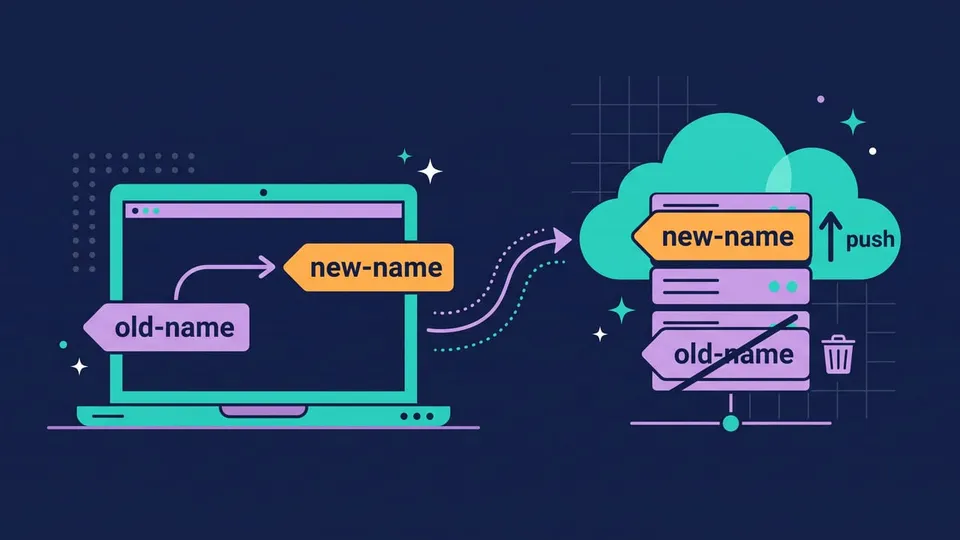
Let's see in practice. Say you created feature/lgoin (typo), pushed it, and now want feature/login:
1. Rename the local branch
git branch -m feature/lgoin feature/login
Now look at the upstream:
$ git status -sb
## feature/login...origin/feature/lgoin
The local branch has the new name, but it still tracks the old remote branch. With the default settings, a plain git push now fails:
fatal: The upstream branch of your current branch does not match
the name of your current branch.
2. Push the new name and set the upstream
$ git push origin -u feature/login
 * [new branch]      feature/login -> feature/login
branch 'feature/login' set up to track 'origin/feature/login'.
-u (--set-upstream) makes the local branch track origin/feature/login from now on.
3. Delete the old name on the remote
$ git push origin --delete feature/lgoin
 - [deleted]         feature/lgoin
Check that everything matches:
$ git branch -vv
* feature/login 8d43cb9 [origin/feature/login] Add login
  main          975c088 [origin/main] Initial commit
Important! If there's an open pull request from the old branch, renaming it like this closes the pull request, since its branch no longer exists. On GitHub, use the web interface instead (next section).
How to rename a branch on GitHub
GitHub can rename the branch on the server for you: go to the repository, open the branch dropdown, click View all branches, then the ... menu next to the branch and Rename branch.
According to the GitHub docs, renaming there:
- redirects URLs with the old branch name to the new one (except raw file URLs);
- updates branch protection rules, draft releases and open pull requests that use the branch as their base;
- closes open pull requests that use the branch as their head (the branch with the changes);
- doesn't redirect
git pullfor the old name, and GitHub Actions workflows that reference it break.
Any user with write access can rename most branches. The default branch and protected branches need an admin.
After the rename, everyone with a clone runs these commands (GitHub shows the same ones):
git branch -m OLD-BRANCH-NAME NEW-BRANCH-NAME
git fetch origin
git branch -u origin/NEW-BRANCH-NAME NEW-BRANCH-NAME
git remote set-head origin -a
This renames the local branch, fetches the new remote branch, points the upstream to it and updates origin/HEAD (needed when the renamed branch is the default one). git remote prune origin removes the old origin/OLD-BRANCH-NAME reference.
Rename master to main
That's the most common rename. If the repository is on GitHub, rename master to main there first (you need admin access). Then update your clone with the commands above, using master and main.
Without the GitHub interface, you can do it from the command line:
git branch -m master main
git push -u origin main
Then change the default branch to main in the repository settings (Settings > Default branch) and only after that delete master:
git push origin --delete master
The remote refuses to delete the branch that is still its default (its HEAD), which is why the order matters.
How to delete a local branch in Git
To delete a local branch, use git branch -d:
$ git branch -d fix/typo
Deleted branch fix/typo (was 91f5b04).
You can delete several at once: git branch -d fix/typo feature/old.
-d (--delete) is the safe option: it only deletes a branch that is fully merged into its upstream, or into HEAD if the branch has no upstream.
Fix "error: the branch is not fully merged"
If the branch has commits that aren't merged anywhere, Git stops:
$ git branch -d experiment
error: the branch 'experiment' is not fully merged
hint: If you are sure you want to delete it, run 'git branch -D experiment'
Check what's in it before you decide (git log main..experiment shows the commits that aren't in main). If you don't need them, force the delete with -D:
$ git branch -D experiment
Deleted branch experiment (was 5573f53).
-D is short for --delete --force.
Tip: Deleted the wrong branch? Git printed the commit hash it pointed to (was 5573f53). Create the branch again from it with git branch experiment 5573f53. If you lost the hash, look for it in git reflog. This works until Git's garbage collection removes the unreferenced commits, which by default doesn't happen before they're 30 days old in the reflog.
Fix "cannot delete branch used by worktree"
Git doesn't delete the branch you're on:
$ git branch -d feature/login
error: cannot delete branch 'feature/login' used by worktree at 'C:/Users/you/projects/my-app'
Switch to another branch first (git switch main) and delete it from there. If the path in the message is another folder, the branch is checked out in a git worktree: remove that worktree or switch branches in it.
How to delete a remote branch
To delete a branch on the remote, use git push with --delete:
$ git push origin --delete feature/login
 - [deleted]         feature/login
origin is the remote name and feature/login is the branch on it. You can list several branches in one command. You'll also see the older syntax with a colon, which does the same thing:
git push origin :feature/login
If the branch doesn't exist on the remote anymore (someone already deleted it, or the pull request was merged with automatic deletion), you get:
error: unable to delete 'nope': remote ref does not exist
On GitHub you can also delete a branch on the web: View all branches, then the trash icon next to it. Deleting a branch that has open pull requests closes them, and to delete the default branch you need to pick another default first (GitHub docs).
Delete a branch locally and remotely
Putting the two together, to delete a branch everywhere:
git push origin --delete feature/login   # remote
git branch -d feature/login              # local
Running git push --delete also removes your origin/feature/login reference, so there's nothing left to clean up in your clone. Your teammates' clones still have it, though.
Clean up stale branches with git fetch --prune
When a branch is deleted on the remote by someone else (or by GitHub after a merge), your origin/... reference stays there. git fetch alone doesn't remove it. To see what's stale:
$ git remote prune --dry-run origin
Pruning origin
URL: https://github.com/you/my-app.git
 * [would prune] origin/feature/search
And to remove it, fetch with --prune:
$ git fetch --prune
 - [deleted]         (none)     -> origin/feature/search
git remote prune origin does the same without fetching. To prune on every fetch, turn it on once:
git config --global fetch.prune true
Pruning removes only the remote-tracking reference. Your local branch is still there, and git branch -vv marks its upstream as gone:
$ git branch -vv
  feature/search 3c66f0b [origin/feature/search: gone] feature/search
* main           a60a1e9 [origin/main] Merge dark mode
Note: git branch -r -d origin/feature/search deletes a single remote-tracking reference by hand. It only makes sense when the branch is already gone from the remote. Otherwise the next fetch brings it back.
How to delete all merged local branches
After a few weeks of pull requests, you end up with dozens of local branches that are already merged. Here are three ways to clean them up.
List merged branches first
$ git branch --merged main
  feature/dark-mode
  feature/search
* main
This lists the branches whose commits are all in main. To delete them (keeping main itself):
git branch --merged main --format='%(refname:short)' | grep -v '^main$' | xargs git branch -d
Delete branches whose remote is gone
If your team deletes branches on GitHub after merging (the Automatically delete head branches option in Settings > General), every merged branch ends up with a gone upstream after a git fetch --prune. This deletes them:
git for-each-ref --format='%(refname:short) %(upstream:track)' refs/heads \
  | awk '$2 == "[gone]" {print $1}' \
  | xargs git branch -d
I use -d here on purpose. A branch whose remote is gone can still have commits you never pushed, and -d refuses to delete it. If the pull requests were merged with squash or rebase, the original commits aren't in main, so -d refuses all of them and you need -D. In that case, check the list (run the command without the last line) before you delete.
These commands need a Bash shell. On Windows, run them in Git Bash.
git branch --delete-merged (Git 2.56)
Git 2.56, released in September 2026, added a built-in option for this: git branch --delete-merged. It deletes local branches whose tip is already in the upstream they track. Use --dry-run to see what it would do:
$ git branch --dry-run --delete-merged origin
Would delete branch fix/header (was 804d6f2).
$ git branch --delete-merged origin
Deleted branch fix/header (was 804d6f2).
origin here means "branches whose upstream is the remote's default branch" (origin/main). You can also pass a ref or a pattern like 'origin/*'.
It's made for branches that track the integration branch, like one created with git switch -c fix/header --track origin/main. In the usual GitHub flow, where you run git push -u origin feature/x and the branch tracks a branch with its own name, it skips the branch. It also skips branches whose upstream is gone and branches checked out in any worktree. In my tests with that usual flow, it deleted nothing, so for that flow the one-liners above are still the way to go. The details are in the git branch docs.
Git branch commands cheat sheet
| Task | Command |
|---|---|
| Rename the current branch | git branch -m new-name |
| Rename another branch | git branch -m old-name new-name |
| Rename a remote branch | git push origin -u new-name, then git push origin --delete old-name |
| Delete a merged local branch | git branch -d branch-name |
| Force delete a local branch | git branch -D branch-name |
| Delete a remote branch | git push origin --delete branch-name |
| Remove stale remote-tracking branches | git fetch --prune |
| List merged branches | git branch --merged main |
FAQ
Does renaming a branch change its commits?
No. A branch is only a name that points to a commit. Renaming it changes the name, and the commits and their hashes stay the same.
Does deleting a branch delete its commits?
Not right away. The commits stay in the repository, and you can get them back with the hash Git printed or with git reflog. Commits that no branch or tag points to are removed later by Git's garbage collection. Commits that were merged into another branch are safe, because that branch still points to them.
How do I rename a branch in VS Code?
Open the Command Palette (Ctrl+Shift+P) and run Git: Rename Branch.... It renames the local branch, the same as git branch -m. The remote still needs the push and delete steps from this post.
What's the difference between git branch -d and -D?
-d deletes the branch only if its commits are merged into its upstream (or into HEAD when there's no upstream). -D deletes it no matter what. Start with -d and switch to -D only after you checked the commits you'd lose.
Conclusion
Renaming and deleting branches comes down to a few commands: git branch -m to rename, git branch -d to delete locally, git push origin --delete to delete on the remote, and git fetch --prune to clean up references to branches that are gone. Remember that the local branch, the remote branch and origin/... are separate, and that a remote branch is renamed by pushing the new name and deleting the old one. If you're new to Git on Windows, my Git on Windows and GitHub tutorial covers the setup.
See you next time!