
Git Worktree: Multiple Branches (and AI Agents) in Parallel

Git worktree is a built-in Git command that lets you check out more than one branch of the same repository at the same time, each one in its own folder. In this post I will show you how to use git worktree day to day: create, list and remove worktrees, fix the errors you'll run into, and use worktrees to run several AI coding agents on the same project without them overwriting each other's files. The short version: git worktree add ../my-app-hotfix -b hotfix creates a new folder with a new branch, you work there as in any clone, and git worktree remove ../my-app-hotfix deletes it when you're done.

Everything here was tested with Git 2.55 on Windows 11 (in Git Bash). The commands are the same on macOS and Linux, and in Git 2.56, the latest release (September 28, 2026).
What is a git worktree?
Every Git repository you clone already has one worktree: the folder with your files, next to the .git directory. Git calls it the main worktree. With git worktree add you create linked worktrees: extra folders, each on its own branch, connected to the same repository.
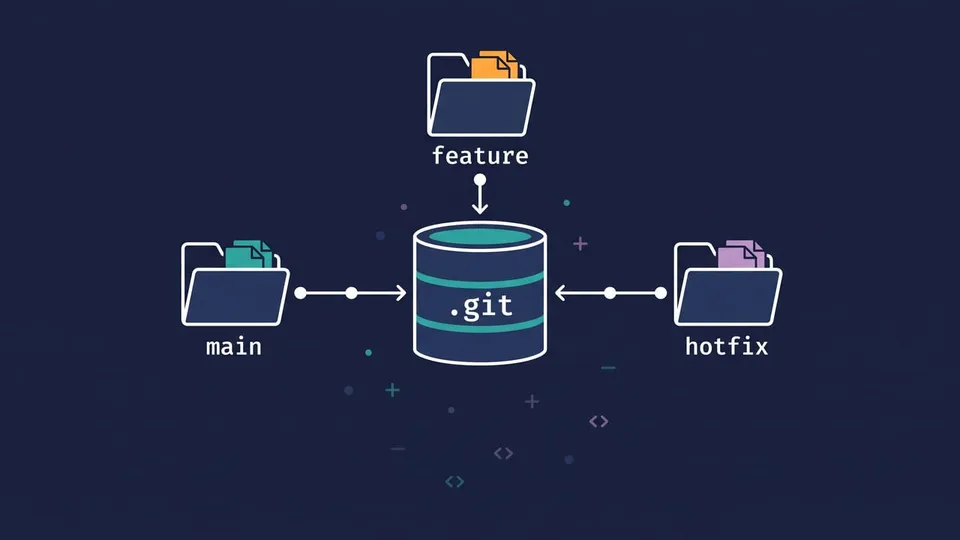
All worktrees share the same history, branches, remotes and stash. A commit you make in one worktree shows up in the others right away, without a push or a fetch. What each worktree has for itself is its files, its index (the staging area) and its HEAD, that is, the branch it has checked out.
A linked worktree doesn't have a .git folder. It has a .git file that points back to the main repository:
$ cat ../my-app-hotfix/.git
gitdir: C:/Users/you/projects/my-app/.git/worktrees/my-app-hotfix
That's why a new worktree takes only the disk space of its files: the history isn't copied.
Worktrees have been part of Git since version 2.5 (2015), so there's nothing to install.
Git worktree vs branch vs clone vs stash
A branch is only a pointer to a commit. A worktree is a folder where a branch is checked out. Without worktrees you have one folder, so every branch takes its turn in it: to switch, you commit or stash what you're doing, run git switch, and maybe reinstall dependencies or restart the dev server.
| Switch branch | Stash | Second clone | Worktree | |
|---|---|---|---|---|
| Branches open at once | 1 | 1 | 1 per clone | 1 per worktree |
| Your current changes | Must be committed or stashed | Saved aside, then restored | Untouched | Untouched |
| History on disk | Once | Once | Copied again | Once (shared) |
| Sees new local commits from the other copy | n/a | n/a | Only after push and fetch | Immediately |
| Good for | One task at a time | Quick interruptions | Fully separate setups | Parallel work, reviews, AI agents |
In practice you use both, since each worktree has a branch checked out. Plain git switch is still fine when you work on one thing at a time. Worktrees help when two things need to be open at the same time, like a half-done feature and an urgent hotfix, or a branch you're reviewing while your own work keeps running.
How to use git worktree
Let's see in practice. Imagine a project in ~/projects/my-app, on the feature/login branch, with uncommitted changes:
$ git status --short
 M login.js
Then a bug report arrives and you need to fix it on main.
Create a worktree with a new branch
Run this inside the repository:
git worktree add ../my-app-hotfix -b hotfix/typo main
Preparing worktree (new branch 'hotfix/typo')
HEAD is now at 4ecbcf1 Initial commit
This created the folder ../my-app-hotfix, created the branch hotfix/typo starting from main and checked it out there. Your login.js changes weren't touched.
The syntax is git worktree add <path> [<commit-ish>]. -b <new-branch> creates a branch, and the last argument says where it starts (if you leave it out, it starts from your current HEAD).
Tip: Put worktrees next to the repository (../my-app-hotfix), not inside it. A worktree inside the repository shows up as an untracked folder in git status.
Now go to the new folder and work as usual:
cd ../my-app-hotfix
# fix the bug...
git commit -am "Fix typo"
git push -u origin hotfix/typo
Back in the main folder, the new commit is already there:
$ cd ../my-app
$ git log --oneline hotfix/typo -1
34afc42 Fix typo
Check out an existing branch in a worktree
To open a branch that already exists, pass its name with no -b:
git worktree add ../my-app-review feature/payments
If the branch exists only on the remote (origin/feature/payments), Git creates a local branch that tracks it:
Preparing worktree (new branch 'feature/payments')
branch 'feature/payments' set up to track 'origin/feature/payments'.
HEAD is now at 34afc42 Fix typo
This is the usual way to review a pull request: fetch, add a worktree on the PR branch, run the code, remove the worktree. Your own branch stays where it was.
Note: If the same branch name exists in more than one remote, Git can't tell which one you mean. Since Git 2.56, git worktree add stops with an error in that case instead of guessing.
Git worktree add without a branch
If you pass only a path, Git creates a branch named after the last part of the path, starting from HEAD:
$ git worktree add ../review
Preparing worktree (new branch 'review')
It's a shortcut, but it's easy to end up with branches you didn't plan to create, so I prefer to always say the branch name.
Detached HEAD: test a tag or a commit
To look at an old version without creating a branch, use --detach:
$ git worktree add --detach ../my-app-v1 v1.0.0
Preparing worktree (detached HEAD 4ecbcf1)
This is handy to compare behavior between versions, or to run a git bisect in a separate folder.
List worktrees (git worktree list)
$ git worktree list
C:/Users/you/projects/my-app         239c45c [feature/login]
C:/Users/you/projects/my-app-hotfix  34afc42 [hotfix/typo]
C:/Users/you/projects/my-app-review  34afc42 [feature/payments]
The main worktree comes first, followed by the linked ones, with the current commit and branch of each. git worktree list -v also shows whether a worktree is locked or prunable, and --porcelain gives a format that's easy to parse in scripts.
git branch shows it too: branches checked out in another worktree get a +:
$ git branch
* feature/login
+ hotfix/typo
  main
Fix "is already used by worktree"
A branch can be checked out in only one worktree at a time. If you try to switch to it somewhere else, Git refuses:
$ git switch hotfix/typo
fatal: 'hotfix/typo' is already used by worktree at 'C:/Users/you/projects/my-app-hotfix'
That protects you: if two folders shared a branch, a commit in one would leave the other with files that no longer match its branch. The fix is to go to the folder Git shows, or remove that worktree first. There's a --force option that skips the check, but I wouldn't use it.
How to remove a git worktree
When you're done, remove the worktree from inside the main one (or any other worktree):
git worktree remove ../my-app-hotfix
This deletes the folder and Git's records about it. If the worktree has modified or untracked files, Git refuses:
fatal: '../my-app-hotfix' contains modified or untracked files, use --force to delete it
Check what's in there first. If you really want to throw it away, add --force.
Important! git worktree remove doesn't delete the branch. Delete it as usual once it's merged:
git branch -d hotfix/typo
Git worktree prune
If you delete a worktree folder by hand (rm -rf, File Explorer), Git keeps its records, and git worktree list marks it as prunable. Clean them up with:
$ git worktree prune --dry-run -v
Removing worktrees/my-app-v1: gitdir file points to non-existent location
$ git worktree prune
--dry-run -v shows what will be removed without removing it. You don't have to remember this one: git gc runs a prune of records older than three months on its own (the gc.worktreePruneExpire setting). But until you prune, the branch of that deleted worktree still counts as checked out.
Lock, move and repair
Three more subcommands you'll need now and then:
git worktree lock --reason "agent running" <path>: protects a worktree fromremove,moveandprune. Good for a worktree on an external drive, or one that a long task is using.git worktree unlock <path>undoes it.git worktree move <path> <new-path>: moves a linked worktree to another folder. It doesn't work for the main worktree or for worktrees with submodules.git worktree repair: fixes the links between the main repository and its worktrees if you moved folders by hand.
Git worktrees for AI agents
US searches for "git worktree" grew about 50% in the last year, and AI agents are a good reason to learn it. Coding agents like Claude Code, Codex and Cursor edit files and run commands for minutes at a time. If you run two of them in the same folder, they edit the same files, run the tests in the middle of each other's changes and commit each other's work.
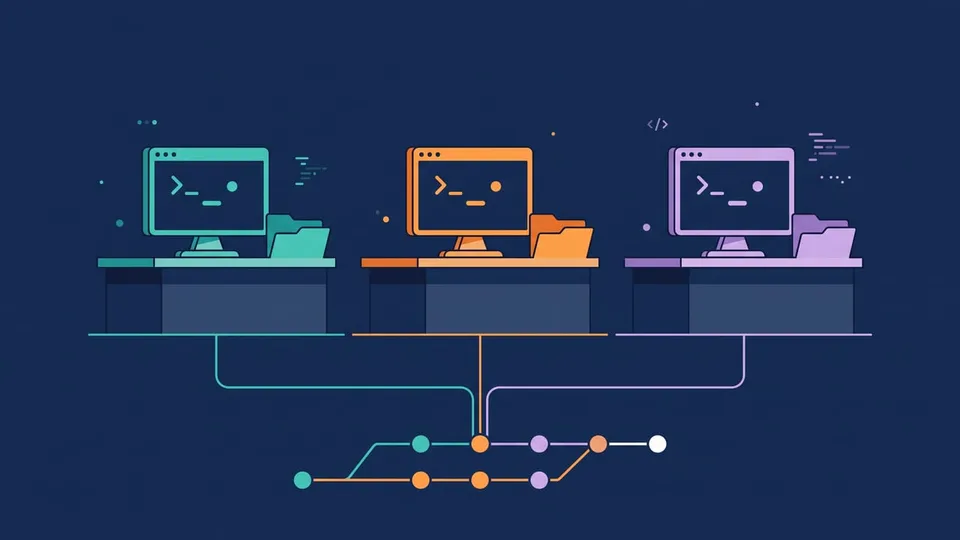
With one worktree per agent, each one has its own files and its own branch, and they all share the same repository. When an agent finishes, you review its branch and merge it, or open a pull request, like you'd do with a teammate's branch.
The manual way (works with any agent)
Create one worktree per task and start the agent in each folder, each in its own terminal:
git worktree add ../my-app-search -b feature/search
git worktree add ../my-app-dark-mode -b feature/dark-mode

# terminal 1
cd ../my-app-search && claude

# terminal 2
cd ../my-app-dark-mode && codex
This works with any tool. If you use both in the same project, I compared them in Codex vs Claude Code.
Claude Code: claude --worktree
Claude Code creates the worktree for you:
claude --worktree feature-auth
According to the Claude Code docs, this creates .claude/worktrees/feature-auth/ at the repository root, on a new branch called worktree-feature-auth, and starts the session inside it. -w is the short form, and without a name Claude Code generates one. Run the same command with another name in a second terminal and you have two isolated sessions. A few details that help:
- Add
.claude/worktrees/to your.gitignore, so these folders don't show up as untracked files in your main checkout. - When you exit, a clean worktree is removed along with its branch (a named session asks first). If it has changes or new commits, Claude Code asks whether to keep or remove it.
- New worktrees start from the remote's default branch (usually
main). To start from your current localHEADinstead, set"worktree": { "baseRef": "head" }in the settings. claude --worktree "#1234"creates a worktree from pull request 1234.- Subagents can run in their own worktrees too: add
isolation: worktreeto a custom subagent's front matter, or ask Claude to "use worktrees for your agents". - For a VCS other than Git, the
WorktreeCreateandWorktreeRemovehooks replace the default logic.
I tested this with Claude Code 2.1.300.
Codex, Cursor and VS Code
The other tools have their own versions of the same idea:
- Codex CLI has an experimental
--worktreeflag (and a/worktreecommand) since version 0.154.0, from September 2026. The Codex app creates its worktrees in$CODEX_HOME/worktrees, in detached HEAD, and by default keeps the 15 most recent ones (docs). - Cursor creates a worktree for each agent you start in a worktree from the Agents Window. In the editor you have
/worktree,/best-of-nand/apply-worktree. A.cursor/worktrees.jsonfile runs setup commands in each new worktree, and old ones are cleaned up automatically (25 per machine by default). More about the Agents Window in Cursor vs Claude Code. - VS Code shows each worktree as a separate repository in the Source Control Repositories view, where you create one from the ... menu (Worktrees > Create Worktree). The command Git: Delete Worktree... removes it.
What worktrees don't isolate
A worktree only separates files and branches. Keep these in mind:
- Untracked files don't come along.
.env,node_modulesand build folders are ignored by Git, so a new worktree starts without them. Runnpm install(or your setup) in each one. To copy files like.envautomatically, Claude Code and the Codex app read a.worktreeincludefile at the repository root (same syntax as.gitignore), Cursor uses.cursor/worktrees.json, and VS Code has the experimentalgit.worktreeIncludeFilessetting. - Ports, databases and Docker are shared. Two dev servers on port 3000 still conflict, and two agents running migrations on the same local database still step on each other.
- Merge conflicts still happen. Agents that changed the same files will conflict when you merge their branches. Give each agent a task in a different part of the code.
- Disk space. Each worktree has a full copy of the files (and its own
node_modules). On a large project, several worktrees add up.
FAQ
Do worktrees share the stash?
Yes. The stash is stored in a ref (refs/stash), and refs are shared between worktrees. A git stash in one folder shows up in git stash list in the others. The same goes for branches, tags, remotes and the repository config.
Can two worktrees use the same branch?
Not by default. Git refuses with is already used by worktree. If you need the same code in two places, create a second branch from it, or use --detach.
What happens if I delete the worktree folder by hand?
Your commits are safe, since they live in the shared repository. Only the uncommitted changes in that folder are gone. Git keeps a record of the worktree until you run git worktree prune (or until git gc prunes it after three months).
Do git worktrees work on Windows?
Yes, in Git Bash, PowerShell or Command Prompt. Everything in this post was tested on Windows 11, and Git prints the paths with forward slashes (C:/Users/...).
Do worktrees work with submodules?
Partly. The Git documentation says support for submodules is still incomplete, and git worktree move doesn't work on worktrees with submodules. If your project uses submodules, test before you rely on worktrees.
Conclusion
Git worktree gives each branch its own folder, sharing one repository. You can fix a bug without stashing, review a pull request without stopping your work, and run several AI agents on the same project without them touching each other's files. Learn add, list and remove, keep worktrees next to the repository, and remember that .env and node_modules don't come along.
See you next time!
Links
- git-worktree documentation
- Git 2.56 release notes
- Claude Code: Run parallel sessions with worktrees
- Codex: Git worktrees
- Cursor: Worktrees
- VS Code: Git branches and worktrees
- Git logo by Jason Long, licensed under CC BY 3.0
Tags: git|productivity|ai|claude-code