
Bash vs Zsh vs PowerShell: Which Shell for Developers?

Open a terminal on a Mac, on a Linux server and on a Windows PC, and you will probably land in three different shells: Zsh, Bash and PowerShell. In this post I will compare Bash vs Zsh vs PowerShell from a developer's point of view, with commands you can run. The short answer: the gap in Zsh vs Bash is small. They share almost all of their syntax, Zsh has the better interactive features, and Bash is the safer choice for scripts that have to run anywhere. PowerShell works differently: its commands pass objects instead of text, and it's the best tool to automate Windows. A common setup is a Bash-compatible shell for daily work and scripts, plus PowerShell when the job is on Windows.
Note: I ran the examples with Bash 5.3.15 (Git Bash on Windows 11), Bash 5.2.21 and Zsh 5.9 (Ubuntu 24.04 on WSL), PowerShell 7.6.9 and Windows PowerShell 5.1. The outputs below are the real ones.
Bash vs Zsh vs PowerShell at a glance
| Bash | Zsh | PowerShell | |
|---|---|---|---|
| Latest version | 5.3 (July 2025) | 5.9.2 (July 2026) | 7.6 LTS (March 2026) |
| Default on | Most Linux distros | macOS (since 10.15 Catalina) | Windows (Windows PowerShell 5.1) |
| Runs on | Linux, macOS, Windows (Git Bash, WSL) | Linux, macOS, Windows via WSL | Windows, macOS, Linux |
| Pipeline passes | Text | Text | .NET objects |
| Syntax family | POSIX shell | POSIX shell, with extensions | Its own (Verb-Noun cmdlets) |
| Config file | ~/.bashrc | ~/.zshrc | $PROFILE |
| License | GPLv3 | MIT-style | MIT |
| Best for | Portable scripts, servers, CI, Docker | Daily interactive use | Windows automation, structured data |
What is a shell?
A shell is the program that reads the commands you type in the terminal and runs them. The terminal (Windows Terminal, iTerm2, the VS Code terminal) is only the window. The shell inside it decides what ls, $HOME or | mean. That's why you can open Bash, Zsh or PowerShell in the same terminal app.
Each operating system comes with a different one:
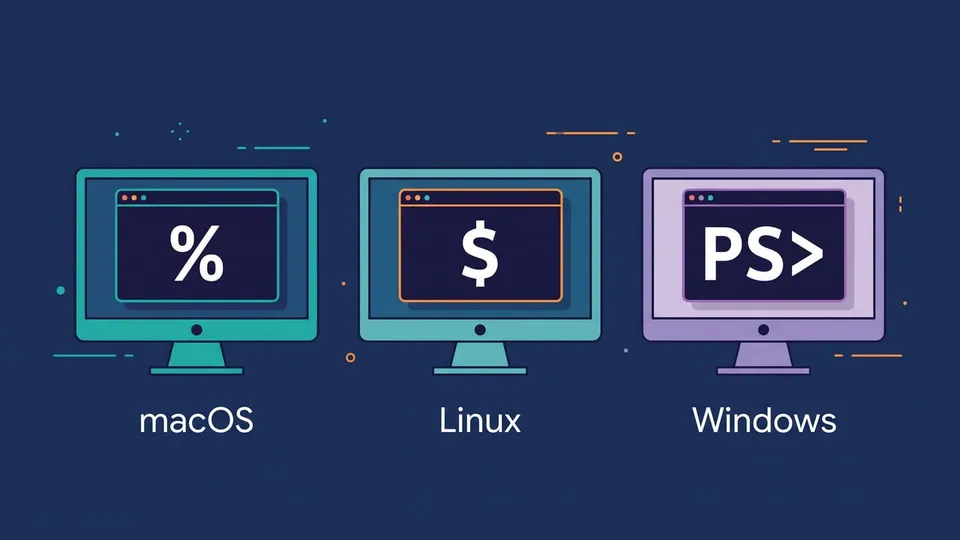
- macOS: Zsh. Apple says that "starting with macOS 10.15, your Mac uses zsh as the default login shell and interactive shell". Bash is still there, but it's the old 3.2.57.
- Linux: Bash on most distributions (Ubuntu, Debian, Fedora).
- Windows: Windows PowerShell 5.1 is built in. The current version, PowerShell 7, is a separate install. Bash comes with Git Bash or WSL.
To see which shell you're using in Bash or Zsh, run:
echo $SHELL   # your login shell, e.g. /bin/zsh
echo $0       # the shell running right now
In PowerShell, $PSVersionTable.PSVersion shows the version.
Zsh vs Bash: what's the difference?
Zsh (Z shell) and Bash (Bourne Again Shell) come from the same family. Variables, if, for, pipes, redirects and && work the same way, and most commands you copy from a tutorial run in both. The differences show up in two places: some details of the scripting language, and the interactive features.
The same code in both
This works in Bash and in Zsh:
name="Ana"
if [[ -f package.json ]]; then
  echo "Hello, $name. This is a Node project."
fi
for file in *.md; do echo "$file"; done
If you know the basics from my post on Bash scripting, you already know most of Zsh.
Where Zsh behaves differently
Let's run the same script in both shells:
files="a.txt b.txt"
for f in $files; do echo "item: $f"; done
arr=(one two three)
echo "first: ${arr[1]}"
echo "count: ${#arr[@]}"
echo $((7 / 2.0))
In Bash:
item: a.txt
item: b.txt
first: two
count: 3
diff.sh: line 6: 7 / 2.0: arithmetic syntax error: invalid arithmetic operator (error token is ".0")
In Zsh:
item: a.txt b.txt
first: one
count: 3
3.5
Three differences in six lines:
- Word splitting: Bash splits an unquoted variable on spaces, so
$filesbecame two items. Zsh keeps it as one value. (This is why Bash scripts need"$var"with quotes everywhere.) - Arrays start at 1 in Zsh.
${arr[1]}is the first item in Zsh and the second in Bash. - Math: Bash only does integer math. Zsh handles decimals.
Globs (wildcards) are different too. When a pattern matches nothing, Bash passes it to the command as it is, and Zsh stops with an error before running the command:
$ ls *.xyz          # Bash
ls: cannot access '*.xyz': No such file or directory

% ls *.xyz          # Zsh
zsh: no matches found: *.xyz
And Zsh expands **/*.ts recursively by default (all .ts files in all subfolders). Bash only does that after shopt -s globstar.
Important! These differences only matter for code that runs inside your shell, like functions in ~/.zshrc or commands you paste. A script that starts with #!/usr/bin/env bash runs in Bash even if you call it from Zsh. So switching your terminal to Zsh doesn't break your Bash scripts.
Interactive features: completion, plugins and Oh My Zsh
This is where most people pick Zsh. Its completion system can show a menu you move through with the arrow keys and complete the options and subcommands of tools like git and npm. It also has options for spelling correction and for sharing history between terminal windows, and a prompt that's easy to customize. Most of this is off in a plain Zsh: you turn it on in ~/.zshrc (for completion, autoload -Uz compinit && compinit) or let a framework do it.
A popular add-on is Oh My Zsh, a framework that bundles 150 themes and 300+ plugins (Git aliases, Node, Docker, kubectl...). The install is one command:
sh -c "$(curl -fsSL https://raw.githubusercontent.com/ohmyzsh/ohmyzsh/master/tools/install.sh)"
Plugins go in the plugins=(...) line of ~/.zshrc. Two popular ones that aren't bundled are zsh-autosuggestions (suggests commands from your history in gray as you type) and zsh-syntax-highlighting.
Bash can get some of this with bash-completion and Oh My Bash, but it takes more work to get close.
Tip: If Oh My Zsh makes your terminal slow to open, a cross-shell prompt like Starship is a lighter option. It works in Bash, Zsh and PowerShell, so your prompt looks the same in all three.
Is Zsh better than Bash?
For typing commands all day, it usually is: the completion and the plugins save time. For scripts, no. Bash is installed on nearly every Linux server, Docker image and CI runner, while Zsh usually isn't. A common setup is Zsh as your interactive shell and Bash for the scripts you commit to a repository.
PowerShell vs Bash
PowerShell is Microsoft's shell and scripting language, built on .NET. Since version 6 it's open source (MIT) and runs on Windows, macOS and Linux. Its syntax is different from Bash, but the bigger change is what flows through the pipe.
Text vs objects
In Bash, every command prints text, and the next command has to parse that text with tools like grep, awk, cut or jq. In PowerShell, commands (called cmdlets) pass .NET objects with properties, so you filter and sort by property name.
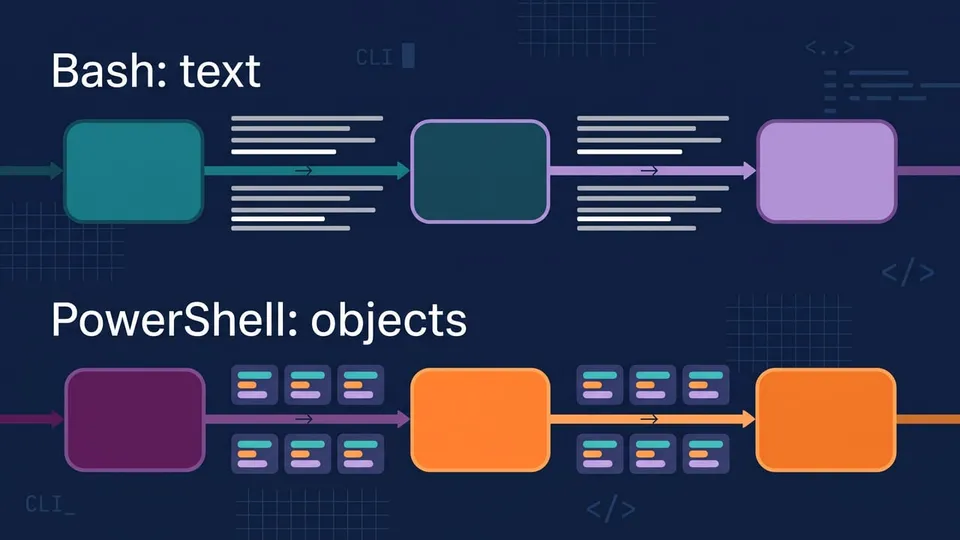
Let's list the three largest files in a folder. In PowerShell:
Get-ChildItem src/libs -File | Sort-Object Length -Descending | Select-Object -First 3 Name, Length
Name     Length
----     ------
posts.ts   3683
rss.ts     2051
theme.ts   1150
Sort-Object Length works because each item is a System.IO.FileInfo object with a Length property. In Bash, ls gives you text, and you rely on its flags:
ls -S src/libs | head -3
posts.ts
rss.ts
theme.ts
For quick jobs like this, Bash is shorter. The object model pays off when the data has structure. Reading a field from package.json in PowerShell needs nothing extra:
(Get-Content package.json | ConvertFrom-Json).name
webdevdrops
In Bash you'd install jq and run jq -r .name package.json. The same goes for CSV (Import-Csv), XML and API responses (Invoke-RestMethod returns objects).
Everyday commands side by side
| Task | Bash / Zsh | PowerShell |
|---|---|---|
| List files, including hidden | ls -la | Get-ChildItem -Force |
| Delete a folder | rm -rf dist | Remove-Item dist -Recurse -Force |
| Search text in files | grep -rn "TODO" src | Get-ChildItem src -Recurse -File | Select-String "TODO" |
| Set an environment variable | export NODE_ENV=production | $env:NODE_ENV = 'production' |
| Read a variable | echo $HOME | $HOME or $env:USERPROFILE |
| Run B only if A worked | npm test && npm run build | Same (PowerShell 7+) |
| Config file | ~/.bashrc, ~/.zshrc | notepad $PROFILE |
Unix habits that break in PowerShell
PowerShell has aliases with Unix names (ls, cat, rm, cp), which helps at first. But they point to cmdlets, and the cmdlets don't know the Unix flags:
PS> ls -la
Get-ChildItem: A parameter cannot be found that matches parameter name 'la'.
rm -rf fails the same way. Other things to watch for:
&&and||only exist in PowerShell 7. In Windows PowerShell 5.1,npm test && npm run buildis a syntax error.curlin Windows PowerShell 5.1 is an alias forInvoke-WebRequest, so curl flags don't work. PowerShell 7 runs the realcurl.exe. In 5.1, typecurl.exe.- Scripts may be blocked. On Windows clients, if nobody set an execution policy, the effective one is
Restricted, which doesn't run.ps1files at all. To allow your own scripts, runSet-ExecutionPolicy -ExecutionPolicy RemoteSigned -Scope CurrentUser. On macOS and Linux there's no execution policy.
PowerShell 7 vs Windows PowerShell 5.1
There are two PowerShells on Windows, and it's easy to mix them up:
- Windows PowerShell 5.1 (
powershell.exe) comes with Windows and runs on the older .NET Framework. - PowerShell 7 (
pwsh) is the cross-platform version under active development. 7.6 is the current LTS, released in March 2026 on .NET 10 and supported until November 2028.
They install side by side. As a developer, install PowerShell 7 and use it as your default:
winget install --id Microsoft.PowerShell --source winget
It also has a good interactive experience now: PSReadLine shows suggestions from your history in gray as you type (press the right arrow to accept, F2 to switch to a list view), much like zsh-autosuggestions.
Is PowerShell better than Bash?
It depends on where the code runs. PowerShell is better for managing Windows (services, the registry, Active Directory, Azure) and for scripts that work with structured data. Bash is better for Linux servers, Docker images and CI pipelines, and for following docs and tutorials, which are almost always written for a POSIX shell. You can install PowerShell on Linux, and Bash on Windows, but each one is at home on its own system.
Git Bash vs PowerShell on Windows
On Windows you can have both installed. Git works the same in either. A simple rule: Git Bash (or WSL) when you're following a README or running project scripts written for Mac and Linux, and PowerShell 7 when you're automating something on Windows itself.
If you go with Git Bash, see my guide Git Bash: How to Install and Use It on Windows, and to set up Git and GitHub from scratch, Git on Windows and GitHub: How to Install and Configure.
Note: Zsh doesn't run natively on Windows. To use it there, install WSL (wsl --install) and then Zsh inside the Linux distro.
Which shell should you use?
- On macOS: keep Zsh as your terminal shell and add Oh My Zsh or Starship. Write scripts for Bash with
#!/usr/bin/env bash. - On Linux: Bash works fine. Install Zsh if you want the extra completion and plugins.
- On Windows: install PowerShell 7 for Windows tasks, and Git Bash or WSL for Unix-style work. Use WSL with Bash or Zsh if your project runs on Linux in production.
- For scripts other people will run (CI, Docker, repo tooling): Bash. On a Windows-only team, PowerShell 7 is a reasonable choice, since
pwshalso runs on the Linux CI runners of GitHub Actions.
How to change your default shell
On macOS or Linux, use chsh with a path listed in /etc/shells:
cat /etc/shells         # shells you can choose
chsh -s $(which zsh)    # switch to Zsh
chsh -s /bin/bash       # back to Bash
Open a new terminal to see the change. On Ubuntu, install Zsh first with sudo apt install zsh. On macOS 13 or later you can also do it in System Settings > Users & Groups: Control-click your user, choose Advanced Options and pick a Login shell.
On Windows, pick the default profile in Windows Terminal > Settings > Startup > Default profile.
In VS Code, the terminal shell is set per operating system in settings.json:
{
  "terminal.integrated.defaultProfile.osx": "zsh",
  "terminal.integrated.defaultProfile.linux": "bash",
  "terminal.integrated.defaultProfile.windows": "PowerShell"
}
FAQ
Can I run Bash scripts in Zsh?
Yes, if the script has a Bash shebang (#!/usr/bin/env bash or #!/bin/bash) and you run it as ./script.sh or bash script.sh. It runs in Bash no matter which shell you're in. Problems only show up when you source a Bash script inside Zsh, because of the differences in arrays and word splitting shown above.
Why did my Mac say "The default interactive shell is now zsh"?
macOS shows that message when you start Bash. Apple switched the default to Zsh in macOS 10.15 Catalina. You can run chsh -s /bin/zsh to switch, or keep Bash and hide the message by adding export BASH_SILENCE_DEPRECATION_WARNING=1 to ~/.bash_profile.
Can I use PowerShell on Mac and Linux?
Yes. PowerShell 7 supports macOS 15, 26 and 27, and Linux distributions like Ubuntu, Debian and RHEL. Install it from the releases page or your package manager and run pwsh. Windows-specific cmdlets (services, registry) aren't available there.
What about Fish?
Fish is another interactive shell with autosuggestions and syntax highlighting built in, with no plugins to install. The catch is that its syntax isn't POSIX-compatible, so commands you copy from tutorials sometimes need changes. Zsh is the safer choice if you want those features and still want Bash-like syntax.
Conclusion
Bash and Zsh are close relatives: learn one and you know most of the other. Use Zsh for its interactive features and keep your scripts in Bash so they run anywhere. PowerShell is a different tool, with objects instead of text, and it's the best way to automate Windows.
If you want to go deeper on the scripting side, my post on Bash scripting covers variables, loops and functions with tested examples.
See you next time!
Links
- GNU Bash manual
- Zsh documentation
- Zsh FAQ: how does zsh differ from sh, ksh and bash?
- Apple: Use zsh as the default shell on your Mac
- PowerShell documentation
- PowerShell support lifecycle
- Oh My Zsh
- Install WSL
- Bash logo © Free Software Foundation, licensed under the Free Art License
Tags: bash|productivity