
Claude Code Hooks: A Practical Guide with Examples

You can write "always run Prettier after you edit a file" in your CLAUDE.md, and Claude will follow it most of the time, but not always. In this post I will show you how Claude Code hooks turn rules like that into something that always happens. A hook is a command (or an HTTP endpoint, an MCP tool or a prompt) that Claude Code runs automatically at a fixed point of a session: before a tool runs, after a file is edited, when Claude finishes responding, and so on. You add them to the hooks key of a settings.json file, and Claude Code runs them every time, without the model deciding whether to.
Important! Hooks change often. Everything here was checked against the official docs on October 15, 2026, with Claude Code 2.1.300. The examples were tested on Windows 11 with Git for Windows 2.55 and Node.js 24, and they're written to work the same way on macOS and Linux.
What are Claude Code hooks?
The official hooks guide defines them as "user-defined shell commands" that run at specific points in Claude Code's lifecycle, giving you "deterministic control: certain actions always happen rather than relying on the LLM to choose to run them".
That's the main difference between a hook and everything else you give Claude:
- CLAUDE.md and skills are instructions. Claude reads them and usually follows them, but it's still the model deciding.
- Hooks are code. If a hook says "block edits to
.env", the edit is blocked, no matter what the model wanted to do.
Typical uses:
- Format files after every edit.
- Block dangerous commands or edits to sensitive files.
- Get a desktop notification when Claude is waiting for you.
- Run the tests before Claude says it's done.
- Log every command Claude runs.
If you're still choosing an AI coding tool, I compared Claude Code with an AI editor in Cursor vs Claude Code and with OpenAI's agent in Codex vs Claude Code. Both Claude Code and Codex support hooks, but the configuration below is specific to Claude Code.
Hook events: when hooks run
Claude Code fires an event at each point of its lifecycle, and you attach hooks to the events you care about. The hooks guide lists 33 events today. These are the ones you'll use most:
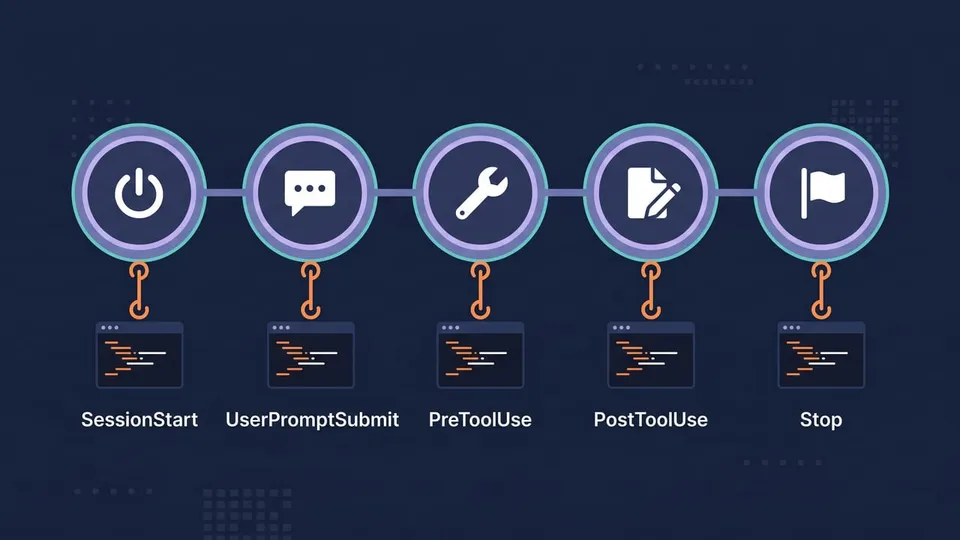
| Event | When it fires | Can block? |
|---|---|---|
SessionStart | When a session starts or resumes (also after compaction) | No |
UserPromptSubmit | When you submit a prompt, before Claude processes it | Yes |
PreToolUse | Before a tool call runs (Bash, Edit, Write, MCP tools...) | Yes |
PermissionRequest | When Claude Code is about to ask you for permission | Yes, with JSON (allow or deny) |
PostToolUse | After a tool call succeeds | Gives feedback; the tool already ran |
Notification | When Claude Code sends a notification (waiting for permission or input) | No |
Stop | When Claude finishes responding | Yes (makes Claude keep working) |
SubagentStop | When a subagent finishes | Yes |
PreCompact | Before context compaction | Yes |
PostCompact | After context compaction | No |
SessionEnd | When the session ends | No |
The full list also has events for failed tool calls (PostToolUseFailure), API errors (StopFailure), file and directory changes (FileChanged, CwdChanged), Git worktrees, model switches (PreModelSwitch, PostModelSwitch), MCP elicitations and more. The hooks reference has the input and output of each one.
Where to configure hooks (settings.json)
Hooks live in the same settings files as the rest of your Claude Code configuration. Where you put them decides their scope:
| File | Scope | Shared with the team? |
|---|---|---|
~/.claude/settings.json | All your projects | No |
.claude/settings.json | One project | Yes, commit it to the repo |
.claude/settings.local.json | One project | No (gitignored) |
| Managed policy settings | Whole organization | Yes, set by admins |
Plugin hooks/hooks.json | While the plugin is enabled | Yes, inside the plugin |
| Skill or subagent frontmatter | While the skill or subagent is active | Yes, inside the file |
The configuration has three levels: the event, a matcher group that filters when it fires, and one or more hook handlers that run. This is what a hook that runs a script after every file edit looks like:
{
  "hooks": {
    "PostToolUse": [
      {
        "matcher": "Edit|Write",
        "hooks": [
          {
            "type": "command",
            "command": "node",
            "args": ["${CLAUDE_PROJECT_DIR}/.claude/hooks/format.mjs"]
          }
        ]
      }
    ]
  }
}
PostToolUseis the event."matcher": "Edit|Write"makes it run only after theEditandWritetools.- The inner
hooksarray has the handlers. Here it's acommandhook that runsnodewith the script path as its argument.
${CLAUDE_PROJECT_DIR} is the project root where the session started, so the path works no matter which folder Claude is in. When a handler has args, Claude Code runs the command directly, without a shell (the docs call it exec form), so you don't need to quote the path. Without args, the command string goes to a shell (shell form), and then you can use pipes and &&.
Tip: You don't need to restart Claude Code after editing a settings file: changes are normally picked up automatically. Type /hooks to see every configured hook, grouped by event and labeled with the file it came from. The /hooks menu is read-only now, so you add and edit hooks in the JSON files (or ask Claude to do it for you).
Matchers
The matcher decides when the hook fires. What it matches depends on the event: tool events match the tool name, SessionStart matches how the session started (startup, resume, clear, compact), Notification matches the notification type, and so on.
"","*"or no matcher: fires every time.- Only letters, digits,
_,-, spaces, commas and|: an exact name or a list of names, likeBashorEdit|Write. - Anything else: a JavaScript regular expression, like
mcp__github__.*for every tool of the GitHub MCP server.
Matchers are case-sensitive: bash doesn't match the Bash tool. And some events, like Stop and UserPromptSubmit, don't support matchers at all: they always fire.
For tool events, there's also an if field that filters by tool name and arguments, with the same syntax as permission rules. For example, "if": "Bash(git *)" runs the hook only for Git commands.
How hooks talk to Claude Code: input and exit codes
When an event fires, Claude Code sends a JSON object to your hook's stdin. Every event has common fields like session_id, cwd and hook_event_name, plus its own data. For a PreToolUse hook on a Bash command, it looks like this:
{
  "session_id": "abc123",
  "cwd": "/Users/sarah/myproject",
  "hook_event_name": "PreToolUse",
  "tool_name": "Bash",
  "tool_input": {
    "command": "npm test"
  }
}
For Edit and Write, tool_input has the file_path instead.
Your hook answers with its exit code:
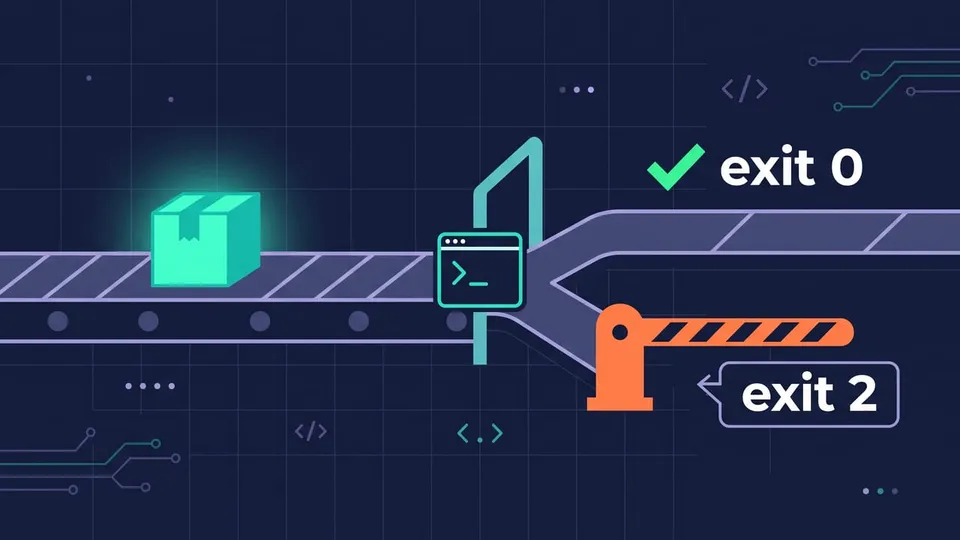
- Exit 0: no objection. For
PreToolUsethis doesn't approve the call: the normal permission flow still applies. ForSessionStartandUserPromptSubmit, whatever you print to stdout is added to Claude's context. - Exit 2: block the action. Write the reason to stderr. For events like
PreToolUseandStop, Claude gets that message as feedback and can adjust. Some events can't be blocked: onSessionStart, exit 2 only shows the message to you. - Any other code: a non-blocking error. The action goes ahead and the transcript shows a hook error notice.
For finer control, exit 0 and print a JSON object to stdout. For example, a PreToolUse hook can deny a call with a reason:
{
  "hookSpecificOutput": {
    "hookEventName": "PreToolUse",
    "permissionDecision": "deny",
    "permissionDecisionReason": "Use rg instead of grep"
  }
}
permissionDecision accepts allow (skip the permission prompt), deny (cancel the call and tell Claude why) and ask (show the prompt to the user). Other events use different fields: PostToolUse and Stop use a top-level "decision": "block" with a reason.
Note: Pick one approach per hook: exit 2 with a message on stderr, or exit 0 with JSON. Also, if several hooks match the same event, they run in parallel, and for PreToolUse the most restrictive answer wins (deny beats ask, which beats allow).
Claude Code hooks examples
Let's see in practice. The official examples parse the JSON input with jq, but jq doesn't come with Git for Windows (in my Git Bash, jq --version returns command not found). So I wrote the scripts in Node.js, which you probably already have and which works the same way on Windows, macOS and Linux.
Each script goes in .claude/hooks/ inside your project, and each configuration block goes in .claude/settings.json. If the file already has a hooks key, add the new event next to the existing ones instead of replacing the whole object.
1. Get notified when Claude needs your input
The docs use this one as their first example: a desktop notification when Claude is waiting for permission or has finished and is idle, so you can do something else and stop checking the terminal. Since you want it in every project, put it in ~/.claude/settings.json.
On macOS:
{
  "hooks": {
    "Notification": [
      {
        "matcher": "",
        "hooks": [
          {
            "type": "command",
            "command": "osascript -e 'display notification \"Claude Code needs your attention\" with title \"Claude Code\"'"
          }
        ]
      }
    ]
  }
}
On Linux, use notify-send in the command:
"command": "notify-send 'Claude Code' 'Claude Code needs your attention'"
On Windows, the docs use a PowerShell dialog box:
"command": "powershell.exe -Command \"[System.Reflection.Assembly]::LoadWithPartialName('System.Windows.Forms'); [System.Windows.Forms.MessageBox]::Show('Claude Code needs your attention', 'Claude Code')\""
It's a dialog, not a toast in the corner of the screen, so it can open behind your terminal window.
The empty matcher fires on every notification type. To be more selective, use permission_prompt (Claude is waiting for you to approve a tool, after about six seconds) or idle_prompt (Claude finished about 60 seconds ago and you haven't typed since).
On macOS, if nothing shows up, open System Settings > Notifications and allow notifications for Script Editor, the app osascript uses to send them.
2. Auto-format files after every edit (PostToolUse)
This hook runs Prettier on every file Claude creates or edits, so formatting stays consistent without asking. It uses the Prettier API, so Prettier must be installed in the project (npm i -D prettier).
Create .claude/hooks/format.mjs:
import { readFileSync, writeFileSync } from 'node:fs'
import * as prettier from 'prettier'

const input = JSON.parse(readFileSync(0, 'utf8'))
const filePath = input.tool_input?.file_path
if (!filePath) process.exit(0)

const info = await prettier.getFileInfo(filePath, { resolveConfig: true })
if (info.ignored || !info.inferredParser) process.exit(0)

const source = readFileSync(filePath, 'utf8')
const options = await prettier.resolveConfig(filePath)
const formatted = await prettier.format(source, { ...options, filepath: filePath })

if (formatted !== source) writeFileSync(filePath, formatted)
readFileSync(0) reads the whole stdin, where Claude Code sends the JSON. The script skips files Prettier ignores or can't parse, and uses your project's Prettier config.
Register it in .claude/settings.json:
{
  "hooks": {
    "PostToolUse": [
      {
        "matcher": "Edit|Write",
        "hooks": [
          {
            "type": "command",
            "command": "node",
            "args": ["${CLAUDE_PROJECT_DIR}/.claude/hooks/format.mjs"]
          }
        ]
      }
    ]
  }
}
In my test, I asked Claude to create src/math.js with exactly this line:
const add=(a,b)=>{return a+b}; module.exports={add:add}
The file on disk ended up formatted:
const add = (a, b) => {
  return a + b;
};
module.exports = { add: add };
When a hook succeeds, Claude Code shows nothing in the conversation. The only sign is the formatted file.
3. Block edits to protected files (PreToolUse with exit 2)
This one stops Claude from touching files like .env, package-lock.json or anything inside .git/. Create .claude/hooks/protect-files.mjs:
import { readFileSync } from 'node:fs'

const input = JSON.parse(readFileSync(0, 'utf8'))
const filePath = (input.tool_input?.file_path ?? '').replaceAll('\\', '/')

const protectedPatterns = ['.env', 'package-lock.json', '.git/']
const match = protectedPatterns.find((pattern) => filePath.includes(pattern))

if (match) {
  console.error(`Blocked: ${filePath} matches protected pattern '${match}'`)
  process.exit(2)
}
The replaceAll turns Windows backslashes into forward slashes, so .git/ also matches on Windows. When the path matches, the script writes the reason to stderr and exits with code 2.
Register it as a PreToolUse hook for the editing tools:
{
  "hooks": {
    "PreToolUse": [
      {
        "matcher": "Edit|Write",
        "hooks": [
          {
            "type": "command",
            "command": "node",
            "args": ["${CLAUDE_PROJECT_DIR}/.claude/hooks/protect-files.mjs"]
          }
        ]
      }
    ]
  }
}
Let's test it? I asked Claude to append DEBUG=true to .env. The edit never happened, and Claude received the message:
PreToolUse:Edit hook error: [...]: Blocked: .../.env matches protected pattern '.env'
Claude then told me the file was protected by a hook and didn't try to write it another way.
Important! This hook only sees the Edit and Write tools. Claude can also change files with shell commands (echo "x" >> .env). For real protection of secrets, combine it with permission rules and a Bash guard like the next example.
4. Block dangerous commands (PreToolUse with JSON)
This example blocks rm -rf and git push --force, and uses JSON output instead of exit 2, so Claude gets a clear reason. Create .claude/hooks/guard-bash.mjs:
import { readFileSync } from 'node:fs'

const input = JSON.parse(readFileSync(0, 'utf8'))
const command = input.tool_input?.command ?? ''

const rules = [
  {
    pattern: /\brm\s+-[a-z]*r[a-z]*f|\brm\s+-[a-z]*f[a-z]*r/i,
    reason: 'rm -rf is not allowed. Delete specific files instead.',
  },
  {
    pattern: /\bgit\s+push\b.*(--force\b|-f\b)/,
    reason: 'Force push is not allowed. Push normally or ask the user.',
  },
]

const rule = rules.find(({ pattern }) => pattern.test(command))

if (rule) {
  console.log(
    JSON.stringify({
      hookSpecificOutput: {
        hookEventName: 'PreToolUse',
        permissionDecision: 'deny',
        permissionDecisionReason: rule.reason,
      },
    }),
  )
}
Add it to the PreToolUse array, with a Bash matcher:
{
  "matcher": "Bash",
  "hooks": [
    {
      "type": "command",
      "command": "node",
      "args": ["${CLAUDE_PROJECT_DIR}/.claude/hooks/guard-bash.mjs"]
    }
  ]
}
When I asked Claude to run rm -rf node_modules/.cache, the command was denied with "rm -rf is not allowed. Delete specific files instead.", and Claude offered to remove specific files instead.
A regex like this catches mistakes, but a creative command can get around it, so don't make it your only line of defense.
5. Make Claude run the tests before it stops (Stop hook)
A Stop hook runs every time Claude finishes responding. If it exits with code 2, Claude doesn't stop: it receives the message and keeps working. Create .claude/hooks/check-tests.mjs:
import { readFileSync } from 'node:fs'
import { spawnSync } from 'node:child_process'

const input = JSON.parse(readFileSync(0, 'utf8'))

// Already continuing because of this hook: let Claude stop
if (input.stop_hook_active) process.exit(0)

const result = spawnSync('npm test', { cwd: input.cwd, shell: true, encoding: 'utf8' })

if (result.status !== 0) {
  const output = `${result.stdout}${result.stderr}`.slice(-2000)
  console.error(`Tests are failing. Fix them before you finish:\n${output}`)
  process.exit(2)
}
{
  "hooks": {
    "Stop": [
      {
        "hooks": [
          {
            "type": "command",
            "command": "node",
            "args": ["${CLAUDE_PROJECT_DIR}/.claude/hooks/check-tests.mjs"]
          }
        ]
      }
    ]
  }
}
Stop has no matcher support, so there's no matcher here. The script sends the end of the test output back to Claude, so it knows what failed.
Claude Code sets stop_hook_active to true when Claude is already continuing because of a Stop hook. Without that check, a test Claude can't fix would keep it in a loop. Claude Code has a safety cap anyway: after eight blocks in a row without a tool call in between, it ends the turn.
Tip: If you only want this for one session, the /goal command is a built-in shortcut for the same idea: you type a condition ("all tests pass") and a model checks it after every turn.
Bonus: re-inject context after compaction
When the context window fills up, Claude Code compacts the conversation, and details can get lost. A SessionStart hook with the compact matcher runs right after that, and whatever it prints goes back into Claude's context:
{
  "hooks": {
    "SessionStart": [
      {
        "matcher": "compact",
        "hooks": [
          {
            "type": "command",
            "command": "echo 'Reminder: use pnpm, not npm. Run the tests before committing.' && git log --oneline -5"
          }
        ]
      }
    ]
  }
}
This one uses shell form (no args), because it needs &&.
Claude Code hooks on Windows
Hooks work on Windows, but there are a few differences worth knowing:
- Shell-form hooks run in Git Bash when Git for Windows is installed, and in PowerShell when it isn't. To pick explicitly, set
"shell": "bash"or"shell": "powershell"on the hook. If you don't have Git Bash yet, I show how to install it in Git Bash: How to Install and Use It on Windows. - As mentioned above, Git for Windows doesn't include
jq. Use Node.js (or Python) scripts, or installjqseparately. - In exec form (with
args),commandmust be a real executable likenode. Shims likenpx,prettieroreslintinnode_modules/.binare.cmdfiles and can't run without a shell. Usenodewith the script path, or use shell form. - Git Bash may load your shell profile, and anything it prints goes to stdout before your hook's JSON, which breaks it. Wrap any
echoin your~/.bashrcso it only runs in interactive shells. - In a
"shell": "powershell"hook, write$env:CLAUDE_PROJECT_DIRor${CLAUDE_PROJECT_DIR}, never the bare$CLAUDE_PROJECT_DIR, which PowerShell reads as an empty variable.
Hooks and Claude Code permissions
Hooks and permission rules work together, with a few differences:
- A
PreToolUsehook that returnsdenyblocks the tool in every permission mode, even inbypassPermissionsor with--dangerously-skip-permissions. That makes hooks a good way to enforce a rule nobody can turn off by switching modes. - The reverse isn't true: a hook that returns
allowskips the prompt, but it doesn't override adenyrule from your settings. - A
PermissionRequesthook can answer permission prompts for you. The docs' example auto-approves onlyExitPlanMode. Keep the matcher as narrow as possible: an empty matcher would approve every prompt, including file writes and shell commands.
If all you need is "never allow this command", a permission rule is simpler. Use a hook when the decision needs logic: look at the file path, the command arguments, the time of day, the Git branch.
Prompt, agent and HTTP hooks
Besides command, a handler can have one of four other types:
prompt: sends the hook input and your prompt to a Claude model, which answers with{"ok": true}or{"ok": false, "reason": "..."}. Good for decisions that need judgment, like "are all the requested tasks done?" in aStophook.agent: likeprompt, but it starts a subagent that can read files and run tools before deciding. Still experimental.http: POSTs the event JSON to a URL, for a shared logging or policy service.mcp_tool: calls a tool on one of your configured MCP servers.
There's also "async": true for command hooks that should run in the background (a slow test suite, for example). An async hook can't block anything, because the action it would control has already happened.
Claude Code hooks not working? How to debug them
When a hook doesn't do what you expect, check these in order:
- Run
/hooksand confirm the hook shows up under the right event. If it's not there, your JSON is probably invalid: no trailing commas, no comments. - Check the matcher. It's case-sensitive, and it must match the exact tool name (
Edit,Write,Bash). - Test the script by hand, piping a sample input into it:
echo '{"tool_name":"Edit","tool_input":{"file_path":"src/.env"}}' | node .claude/hooks/protect-files.mjs
echo $?
For the protect-files script, this prints the Blocked: message and exit code 2.
- Open the transcript with
Ctrl+O. A successful hook shows nothing, a block shows its message, and a non-blocking error shows a "hook error" notice. - Use debug logs: start with
claude --debug, or run/debugin the middle of a session. The log has each hook's command, exit code and output.
To turn all hooks off for a while without deleting them, set "disableAllHooks": true in your settings.
Security: review hooks before you add them
Command hooks run with your full user permissions: they can read, change or delete anything your account can. A few rules:
- Read every hook before you add it, especially ones copied from the internet.
- In an interactive session, Claude Code doesn't run a project's hooks until you accept the workspace trust dialog for that folder. But in
claude -p(non-interactive) and SDK sessions, the folder is treated as trusted, so hooks committed in a repo's.claude/settings.jsonrun right away. Before runningclaude -pon a repository you didn't write, look at its.claude/folder, or disable hooks for that run with--settings '{"disableAllHooks": true}'. - Quote shell variables (
"$VAR"), check file paths for.., and keep scripts away from secrets.
FAQ
What's the difference between Claude Code hooks and skills?
A skill gives Claude extra instructions and resources that it loads when they're relevant, and Claude decides how to use them. A hook is code that Claude Code runs at a fixed event, whether the model wants it or not. Use a skill to teach Claude how to do something, and a hook for things that must always happen. Skills can even define their own hooks in their frontmatter. I show how to write a skill in Claude Code Skills: How to Create Your Own.
Do hooks slow Claude Code down?
Synchronous hooks block until they finish, so a slow hook on PreToolUse or PostToolUse makes every matching tool call slower. Keep them fast, filter them with a matcher, and use "async": true for slow work that doesn't need to block anything. The default timeout for command hooks is 10 minutes (600 seconds), and you can change it per hook with the timeout field.
Can a hook run a slash command or call a tool?
No. Command hooks talk to Claude Code only through stdout, stderr and exit codes. They can block an action, add context or send feedback to Claude, but they can't trigger a / command or a tool call themselves.
Do hooks run in subagents?
Yes. Hooks from your settings files and plugins also run when a subagent calls a tool, and the input includes agent_id and agent_type so the script can tell them apart. Subagents can also have their own hooks in their frontmatter, which run only while that subagent is active.
Conclusion
With hooks, your rules run every time instead of whenever the model remembers them. Start with one or two: a notification so you stop watching the terminal, and a formatter or a guard for the project you work on the most. Write the scripts in a language you already use (Node.js works everywhere, Windows included), test them by piping a sample JSON, and check /hooks when something doesn't fire.
See you next time!
Links
- Claude Code: Automate actions with hooks (guide)
- Claude Code: Hooks reference
- Claude Code: Permissions
- Claude Code: /goal
- Claude Code changelog
- Prettier API
Tags: ai|claude-code|nodejs|productivity