
Git Undo Last Commit: reset vs revert (with Examples)

You committed and only then noticed the wrong file in it, or the change that broke the build. In this post I will show you how to undo the last commit in Git, and how to choose between git reset and git revert. The short answer: if you haven't pushed the commit yet, git reset --soft HEAD~1 undoes it and keeps your changes staged (git reset --hard HEAD~1 throws them away). If you already pushed it, use git revert HEAD, which creates a new commit that cancels the old one without rewriting history.
Everything here was tested with Git 2.56 on Windows 11 (in Git Bash). The commands are the same on macOS and Linux.
Which command should you use?
Two questions decide it: did you push the commit, and do you want to keep the changes?
| Situation | Command |
|---|---|
| Not pushed, keep the changes staged | git reset --soft HEAD~1 |
| Not pushed, keep the changes unstaged | git reset HEAD~1 |
| Not pushed, throw the changes away | git reset --hard HEAD~1 |
| Only fix the message or add a forgotten file | git commit --amend |
| Already pushed to a shared branch | git revert HEAD |
| Undo only one file | git restore --source=<commit> -- file |
The Git docs sum up the three similar names: git revert makes a new commit that reverses other commits, git restore brings back files from the index or from another commit without touching your branch, and git reset moves the tip of your branch, so it changes history.
First, find the commit
Look at the recent history with git log --oneline:
$ git log --oneline
10bf2e0 Add login
380a032 Add app.js
14fcb5a Initial commit
HEAD is the commit you're on (10bf2e0 here). HEAD~1 is the commit before it, HEAD~2 the one before that, and so on. You can also use the hash itself (380a032) anywhere this post uses HEAD~1.
Tip: On Windows, prefer HEAD~1 over HEAD^. In cmd.exe the ^ is an escape character, so HEAD^ turns into HEAD and the command silently does nothing. In PowerShell, quote references with braces, like 'HEAD@{1}', or PowerShell eats the braces. Git Bash has neither problem.
How to undo the last commit with git reset
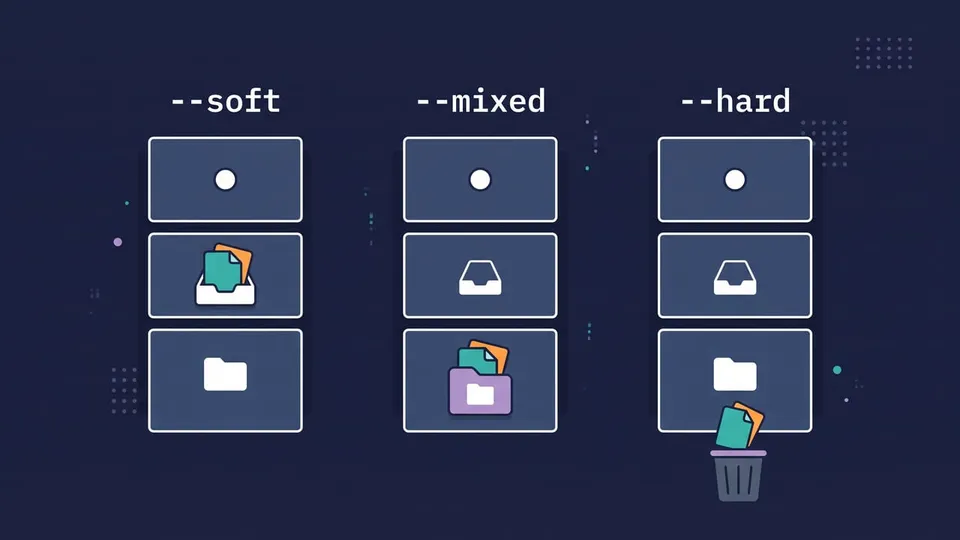
git reset moves your branch back to an earlier commit. The commit you "undo" is no longer part of the branch. What happens to its changes depends on the mode.
git reset --soft: undo the commit, keep the changes staged
$ git reset --soft HEAD~1
$ git status -s
A  .env
A  login.js
The commit is gone, and its changes are still in the staging area, ready to commit again. Use it when you want to redo the commit, for example to change a file before committing or to write a better message.
git reset (mixed): keep the changes, but unstaged
--mixed is the default mode, so you don't need to type it:
$ git reset HEAD~1
$ git status -s
?? .env
?? login.js
The files are still on disk with your changes, but nothing is staged. That's what most people want when they search for "git undo commit keep changes": you get back to the moment before git add, so you can pick what goes into the next commit.
git reset --hard: undo the commit and discard the changes
$ git reset --hard HEAD~1
HEAD is now at 380a032 Add app.js
$ git status
On branch main
Your branch is up to date with 'origin/main'.

nothing to commit, working tree clean
The commit and its changes are gone from your branch and from your files.
Important! --hard also discards uncommitted changes in tracked files, and those were never saved in a commit, so Git can't bring them back. Run git status before you use it. A commit you reset away is recoverable for a while, as I show in How to undo a git reset.
Undo several commits
Go back further with HEAD~N, or pass a hash:
git reset --soft HEAD~3   # undo the last 3 commits, keep their changes staged
git reset --hard 380a032  # move the branch back to 380a032
git reset --soft HEAD~3 followed by git commit is also a quick way to squash the last three commits into one.
How to fix the last commit with git commit --amend
Sometimes you don't want to undo the commit, just fix it. git commit --amend replaces the last commit with a new one that has your staged changes and a new message.
Let's see in practice. Say the last commit included a .env file by mistake, and the message could be better:
$ git rm --cached .env
$ echo ".env" > .gitignore
$ git add .gitignore
$ git commit --amend -m "Add login page"
[main bc51d32] Add login page
 2 files changed, 2 insertions(+)
 create mode 100644 .gitignore
 create mode 100644 login.js
git rm --cached removes the file from the commit but keeps it on disk. To change only the message, run git commit --amend with nothing staged. To add a forgotten file without changing the message, stage it and run git commit --amend --no-edit.
Note: The amended commit has a new hash (bc51d32), so amend rewrites history just like reset. Use it on commits you haven't pushed. If a secret like an API key was already pushed, rotate it: removing it from the history doesn't make it secret again.
How to undo a pushed commit with git revert
Once a commit is on a shared branch, other people may have it in their clones. Instead of removing it, git revert creates a new commit with the opposite changes:
$ git log --oneline -3
f4a51bb Change app.js
bc51d32 Add login page
380a032 Add app.js

$ git revert HEAD --no-edit
[main ae50af3] Revert "Change app.js"
 1 file changed, 1 deletion(-)

$ git push
   f4a51bb..ae50af3  main -> main
Git writes a message like this one for the new commit:
Revert "Change app.js"

This reverts commit f4a51bbe2a2d5f39e4c83d1dc5d283feb37a7d13.
Without --no-edit, Git opens your editor so you can explain why you reverted. The push is a normal push, so nobody's clone breaks, and the history shows both the mistake and the fix.
git revert needs a clean working tree, so commit or stash your changes first.
Revert an older commit
The commit doesn't need to be the last one. Pass its hash:
git revert 380a032
If later commits changed the same lines, the revert stops with a conflict:
$ git revert HEAD~1
Auto-merging config.js
CONFLICT (content): Merge conflict in config.js
error: could not revert da38bf6... Update config to v2
Fix the file, git add it and run git revert --continue. To give up and go back to where you were, run git revert --abort.
Revert multiple commits
git revert accepts a range. With --no-commit (-n), it applies all the reverts to your files and lets you make a single commit:
$ git log --oneline -4
bdf9227 Notes 3
ea41c67 Notes 2
bda7706 Notes 1
f4a51bb Change app.js

$ git revert --no-commit HEAD~3..HEAD
$ git commit -m "Revert the notes commits"
HEAD~3..HEAD means "the commits after HEAD~3 up to HEAD", so the three Notes commits. Without --no-commit, you get one revert commit for each.
Revert a merge commit
A merge commit has two parents, and Git doesn't know which side to keep:
$ git revert HEAD
error: commit c6097de65711bc29461c452c2bc1e07ddebbd2d3 is a merge but no -m option was given.
fatal: revert failed
Tell it with -m. -m 1 keeps the first parent (the branch you merged into, usually main) and removes what the merge brought in:
$ git revert -m 1 HEAD --no-edit
[main 8a993d1] Revert "Merge branch 'feature/search'"
 1 file changed, 1 deletion(-)
 delete mode 100644 search.js
Important! After this, merging feature/search again won't bring those changes back, because Git sees its commits as already merged. To bring them back, revert the revert commit. The revert-a-faulty-merge how-to in the Git docs explains this case.
git reset vs git revert
| git reset | git revert | |
|---|---|---|
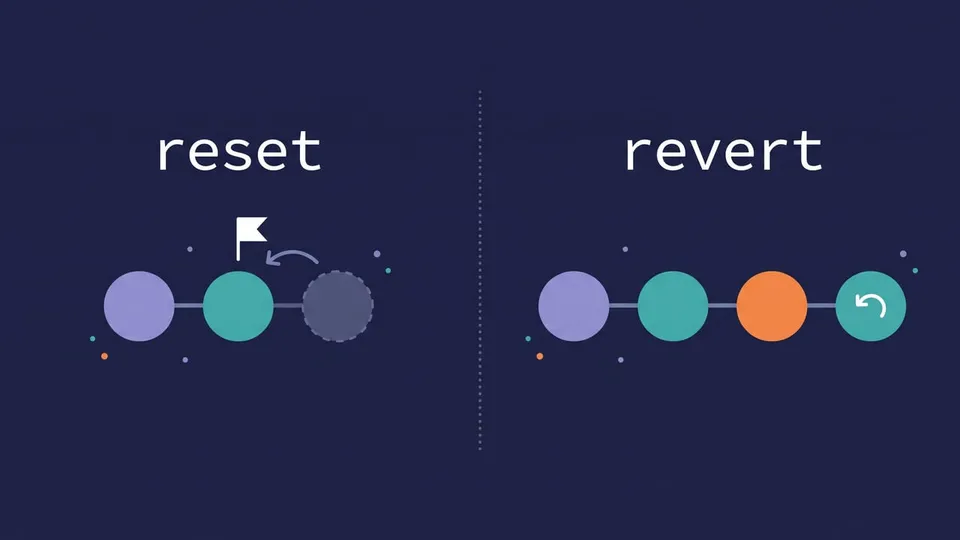
| What it does | Moves the branch back to an earlier commit | Adds a new commit with the opposite changes |
| History | Rewritten: the commits leave the branch | Kept: the old commit and the revert both stay |
| After a push | Needs a force push | Normal push |
| Safe on shared branches | No | Yes |
| Works on | The last commits (everything after the target) | Any commit or range, even old ones |
| Your changes | Kept staged, kept unstaged or discarded (mode) | Needs a clean working tree |
In short: reset for commits that only exist on your machine, revert for anything other people may have pulled.
Undo a pushed commit with reset and force push
Can you reset a commit you already pushed? Yes, but the remote will refuse a normal push, because your branch is now behind it:
$ git reset --hard HEAD~1
HEAD is now at f4a51bb Change app.js
$ git push
 ! [rejected]        main -> main (non-fast-forward)
error: failed to push some refs to '...'
To replace the remote history with yours, force the push:
$ git push --force-with-lease
 + ae50af3...f4a51bb main -> main (forced update)
Prefer --force-with-lease over --force: it refuses to overwrite the remote branch if it has commits you haven't fetched, so you don't delete a teammate's work by accident (git push docs).
Only do this on a branch that is yours alone, like a feature branch with an open pull request. On main or any shared branch, anyone who already pulled the commit will have a diverged history, and many repositories block force pushes there anyway. Use git revert instead.
How to revert a single file
git revert works on whole commits. To undo the changes to one file, bring it back from an earlier commit with git restore and commit the result.
First, find the commits that touched the file:
$ git log --oneline -- app.js
f4a51bb Change app.js
380a032 Add app.js
Then restore the file as it was in a commit before the bad change:
$ git restore --source=380a032 -- app.js
$ git status -s
 M app.js
$ git commit -am "Restore app.js"
Only app.js changes, and your branch stays where it is. The older form, git checkout 380a032 -- app.js, does the same and also stages the file. Both overwrite any uncommitted changes in that file.
Tip: To discard uncommitted changes in a file (go back to the last commit), run git restore app.js. To unstage a file you added by mistake, run git restore --staged app.js.
How to undo a git reset
Reset a commit you needed? Git keeps a log of where HEAD has been, the reflog:
$ git reflog -3
eea2ce0 HEAD@{0}: reset: moving to HEAD~1
1e1cc54 HEAD@{1}: commit: Add login
eea2ce0 HEAD@{2}: commit: Add app.js
The commit you reset away is 1e1cc54, so reset back to it:
$ git reset --hard 1e1cc54
HEAD is now at 1e1cc54 Add login
For the reset you just did, git reset --hard ORIG_HEAD is a shortcut: Git saves the previous tip in ORIG_HEAD before every reset. HEAD@{1} also works (quote it in PowerShell).
This works because commits aren't deleted right away. By default, Git's garbage collection keeps reflog entries for commits that are no longer on any branch for 30 days (gc.reflogExpireUnreachable). Uncommitted changes lost with --hard are not in the reflog, though.
Remove a commit from the middle: git history drop
What if the bad commit isn't the last one, it isn't pushed, and you want it gone instead of reverted? The classic answer is an interactive rebase (git rebase -i). Git 2.56 (September 2026) added a simpler option to the experimental git history command: git history drop.
$ git log --oneline -3
8de0fd3 Add feat.txt
8123f6d Add typo.txt by mistake
9dc9737 Add other.txt

$ git history drop HEAD~1

$ git log --oneline -3
c6fae81 Add feat.txt
9dc9737 Add other.txt
6ebbe0c Update config to v3
Git removed 8123f6d and replayed the commits after it onto its parent, so they got new hashes. Some limits from the docs: it can't drop the root commit or a merge commit, it doesn't work yet on histories that contain merges, and it doesn't handle conflicts. If replaying the later commits would conflict, it stops with error: failed replaying descendants and changes nothing. It's marked experimental, so its behavior may change.
The same command also has reword (change an old commit's message), fixup and split.
Git undo commands cheat sheet
| Task | Command |
|---|---|
| Undo last commit, keep changes staged | git reset --soft HEAD~1 |
| Undo last commit, keep changes unstaged | git reset HEAD~1 |
| Undo last commit and discard changes | git reset --hard HEAD~1 |
| Change the last commit | git commit --amend |
| Undo a pushed commit | git revert <commit> |
| Revert several commits in one commit | git revert --no-commit A..B |
| Revert a merge commit | git revert -m 1 <merge> |
| Restore one file from a commit | git restore --source=<commit> -- file |
| Unstage a file | git restore --staged file |
| Undo a reset | git reset --hard ORIG_HEAD |
FAQ
Does git reset delete the commit?
Not right away. The commit leaves the branch but stays in the repository, and you can find it with git reflog. Git's garbage collection removes it later, by default after 30 days.
How do I undo git add?
Use git restore --staged <file>, or git restore --staged . for everything. The file keeps your changes, it's only removed from the staging area. git reset <file> does the same.
How do I undo a merge?
If you haven't pushed it, git reset --hard ORIG_HEAD right after the merge takes the branch back to where it was. If it's pushed, revert it with git revert -m 1 <merge-commit>, as shown above.
What's the difference between git revert and git checkout?
git revert creates a commit that undoes another commit. git checkout <commit> only moves you to that commit (in a detached HEAD) to look around, and git checkout <commit> -- file copies a file from it. Neither changes your branch the way revert does.
Conclusion
To undo the last commit in Git, start by asking whether you pushed it. If not, git reset with --soft, the default mode or --hard takes it back and decides what happens to the changes, and git commit --amend fixes it in place. If you did, git revert cancels it with a new commit that everyone can pull. If you reset too much, git reflog shows where the lost commit is. If you're cleaning up branches too, see how to rename and delete Git branches.
See you next time!