Git Rebase vs Merge (and How to Squash Commits)
Git rebase vs merge with real examples: what each one does to your history, when to use which, and how to squash commits with interactive rebase.

Published 17 min read
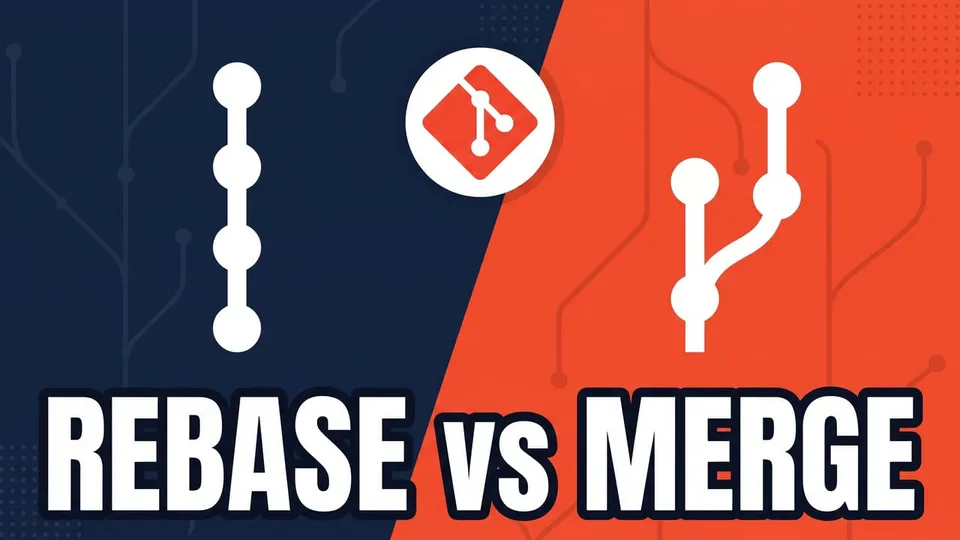
Your feature branch is a few commits behind main, and Git gives you two ways to catch up: git merge and git rebase. In this post I will show you the difference between git rebase vs merge with real commands and output, when to use each one, and how to squash commits before you open a pull request. The short answer: git merge main joins the two histories with a new merge commit and doesn't change any existing commit. git rebase main replays your commits on top of the latest main, which gives you a straight line of history, but every replayed commit gets a new hash. Rebase your own local branches; merge (or use a pull request) for anything other people already pulled.
Everything here was tested with Git 2.55 on Windows 11 (in Git Bash). The commands are the same on macOS and Linux.
The example repository
Let's use the same small repository through the whole post. main has two commits, the feature/login branch adds two more, and meanwhile someone added a footer to main:
$ git log --oneline --graph --all
* 8068c3f Validate login form
* b1d9db1 Add login form
| * 494d9ab Add footer
|/
* 507fab5 Add README
* 46a107f Initial commit
The branches diverged at 507fab5. Now feature/login needs the footer commit from main. There are two ways to get it.
What git merge does
From the feature branch, run git merge main:
$ git switch feature/login
$ git merge main
Merge made by the 'ort' strategy.
 footer.js | 1 +
 1 file changed, 1 insertion(+)
 create mode 100644 footer.js

$ git log --oneline --graph
*   31b7f77 Merge branch 'main' into feature/login
|\
| * 494d9ab Add footer
* | 8068c3f Validate login form
* | b1d9db1 Add login form
|/
* 507fab5 Add README
* 46a107f Initial commit
Git created a new commit, 31b7f77, with two parents: the tip of your branch and the tip of main. Your two commits kept their hashes (b1d9db1 and 8068c3f), and the graph shows that the work happened in parallel.
What is git rebase?
git rebase takes the commits on your branch that aren't in the target branch and replays them, one by one, on top of it. Same starting point, but this time:
$ git switch feature/login
$ git rebase main
Successfully rebased and updated refs/heads/feature/login.

$ git log --oneline --graph
* 06987e8 Validate login form
* d3dd13c Add login form
* 494d9ab Add footer
* 507fab5 Add README
* 46a107f Initial commit
No merge commit, and the history is a straight line: it looks like you started the feature after the footer was added. But look at the hashes. Add login form was b1d9db1 and now it's d3dd13c. A commit's hash depends on its parent, so a replayed commit is a new commit with the same changes. The old ones are still in the repository for a while, but no branch points to them anymore.
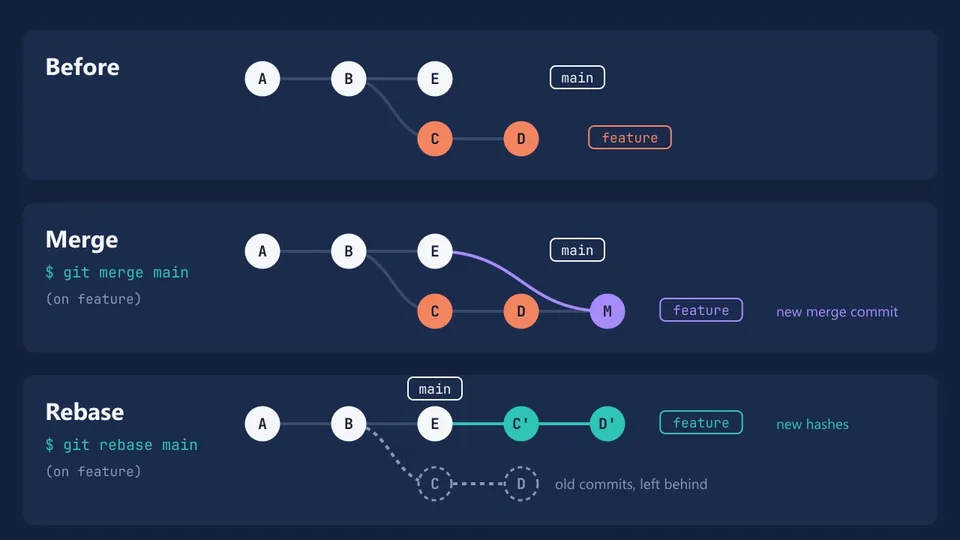
Since the feature branch now sits right on top of main, merging it into main is a fast-forward: Git only moves the main pointer, with no merge commit.
$ git switch main
$ git merge feature/login
Updating 494d9ab..06987e8
Fast-forward
 login.js | 2 ++
 1 file changed, 2 insertions(+)
 create mode 100644 login.js
That rebase-then-fast-forward combo is how teams keep a linear history on main.
Git rebase vs merge: the differences
| git merge | git rebase | |
|---|---|---|
| What it does | Joins two histories with a merge commit | Replays your commits on top of another branch |
| History | Shows the branches as they really happened | A straight line, as if you worked in sequence |
| Existing commits | Unchanged, same hashes | Rewritten, new hashes |
| Conflicts | Resolved once, in the merge commit | Resolved commit by commit, as each one is replayed |
| After a push | Normal push | Needs a force push if the branch was already pushed |
| Safe on shared branches | Yes | No |
| Undo | git reset --hard ORIG_HEAD or git revert -m 1 | git reset --hard ORIG_HEAD or the reflog |
Which one to use depends on what you want from the history: a record of what really happened (merge), or a clean story that's easy to read and bisect (rebase).
When to use git rebase and when to use merge
The rule that matters comes from the Pro Git book: "Do not rebase commits that exist outside your repository and that people may have based work on." If a teammate built on top of your commits and you rewrite them, their history no longer matches yours and they have to fix it by hand.
In practice, this gives a simple workflow:
- Rebase your own feature branch onto
mainto pick up new changes, and clean it up (squash, reword) before you open a pull request. - Merge when you integrate into a shared branch, like merging a pull request into
main, or when other people are working on the same feature branch. - Never rebase
main, or any branch others pull from.
The same book sums it up: rebase local changes before pushing, "but never rebase anything that you've pushed somewhere."
What about a feature branch you already pushed, but nobody else uses? You can rebase it, but the remote will reject the normal push:
$ git rebase main
$ git push
 ! [rejected]        feature/profile -> feature/profile (non-fast-forward)
error: failed to push some refs to '../remote.git'
Use --force-with-lease:
$ git push --force-with-lease
 + cf17ae3...f55838e feature/profile -> feature/profile (forced update)
Unlike --force, it refuses to overwrite the remote branch if it has commits you haven't fetched, so you can't wipe out someone else's push by accident (git push docs). Rebasing a branch with an open pull request is common, and GitHub updates the PR after the force push.
How to resolve conflicts during a rebase
When a replayed commit touches the same lines as the target branch, the rebase stops at that commit:
$ git rebase main
Auto-merging config.txt
CONFLICT (add/add): Merge conflict in config.txt
error: could not apply c7cfbb1... Set theme color
hint: Resolve all conflicts manually, mark them as resolved with
hint: "git add/rm <conflicted_files>", then run "git rebase --continue".
hint: You can instead skip this commit: run "git rebase --skip".
hint: To abort and get back to the state before "git rebase", run "git rebase --abort".
You have three options:
- Fix it and continue: edit the file, then
git addit and rungit rebase --continue. Git commits the fixed version and moves on to the next commit. - Skip the commit with
git rebase --skip. The commit is left out of the result, so use it only when you don't need it anymore. - Give up with
git rebase --abort. Your branch goes back to exactly where it was before the rebase.
$ git add config.txt
$ git rebase --continue
[detached HEAD 1c105b5] Set theme color
 1 file changed, 1 insertion(+), 1 deletion(-)
Successfully rebased and updated refs/heads/feature/theme.
Since rebase replays one commit at a time, a branch with 10 commits can stop up to 10 times, while a merge would show all the conflicts once. That's one of the costs of rebase on long-lived branches.
Note: During a rebase, "ours" and "theirs" are swapped. The git rebase docs explain why: "ours" is the branch you're rebasing onto (main plus the commits already replayed), and "theirs" is your branch. Keep that in mind before you run git checkout --ours or pick "Accept Current Change" in your editor.
How to undo a git rebase
If the rebase finished but you don't like the result, Git saved where your branch was in ORIG_HEAD when the rebase started:
$ git reset --hard ORIG_HEAD
HEAD is now at c7cfbb1 Set theme color
ORIG_HEAD changes with other commands too (like git reset), so if you did something else after the rebase, find the old commit in the reflog. Look for the entry right below rebase (start):
$ git reflog -7
4a9fd88 HEAD@{0}: rebase (finish): returning to refs/heads/feature/search
4a9fd88 HEAD@{1}: rebase (squash): Add search box
0042abf HEAD@{2}: rebase (fixup): # This is a combination of 3 commits.
bc5ab4f HEAD@{3}: rebase (fixup): # This is a combination of 2 commits.
7b761b6 HEAD@{4}: rebase (start): checkout HEAD~4
6e08b5d HEAD@{5}: rebase (finish): returning to refs/heads/feature/search
Here the branch was at 6e08b5d before the rebase, so git reset --hard 6e08b5d brings it back. I explain reset and the reflog in more detail in Git Undo Last Commit: reset vs revert.
git pull --rebase
git pull is git fetch plus a merge or a rebase. When your local branch and the remote both have new commits, and you never told Git which one to use, it stops:
$ git pull
hint: You have divergent branches and need to specify how to reconcile them.
hint: You can do so by running one of the following commands sometime before
hint: your next pull:
hint:
hint:   git config pull.rebase false  # merge
hint:   git config pull.rebase true   # rebase
hint:   git config pull.ff only       # fast-forward only
...
fatal: Need to specify how to reconcile divergent branches.
git pull --no-rebase merges, and creates one of those "Merge branch 'main' of ..." commits that clutter the history. git pull --rebase puts your local commits on top of what you fetched, which is usually what you want: those commits were never pushed, so rewriting them is safe.
To make it the default for every repository:
git config --global pull.rebase true
Tip: On Windows, the Git for Windows installer has a screen for the default behavior of git pull and saves your choice in the system config. If git pull rebases or merges without asking, check where the setting comes from with git config --show-origin pull.rebase.
How to squash commits in Git
Squashing means combining several commits into one. There's no git squash command: you do it with interactive rebase, git reset --soft or git merge --squash. It's useful before opening a pull request, so commits like "WIP" and "Fix typo" don't end up in main.
Here's the branch we'll clean up:
$ git log --oneline -5
6e08b5d Search results list
c2cd667 Fix typo
292fa4b WIP
7b761b6 Add search box
494d9ab Add footer
Squash commits with interactive rebase
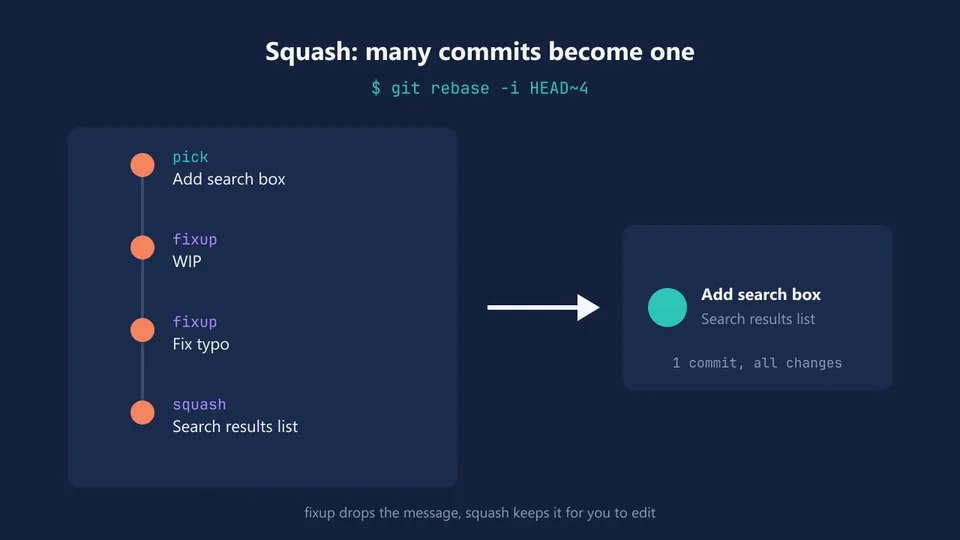
git rebase -i (interactive) opens your editor with a to-do list of the commits you're about to replay. HEAD~4 means the last 4 commits:
git rebase -i HEAD~4
pick 7b761b6 # Add search box
pick 292fa4b # WIP
pick c2cd667 # Fix typo
pick 6e08b5d # Search results list

# Rebase 494d9ab..6e08b5d onto 494d9ab (4 commands)
#
# Commands:
# p, pick <commit> = use commit
# r, reword <commit> = use commit, but edit the commit message
# e, edit <commit> = use commit, but stop for amending
# s, squash <commit> = use commit, but meld into previous commit
# f, fixup [-C | -c] <commit> = like "squash" but keep only the previous
#                    commit's log message, unless -C is used, in which case
#                    keep only this commit's message; -c is same as -C but
#                    opens the editor
# x, exec <command> = run command (the rest of the line) using shell
# b, break = stop here (continue rebase later with 'git rebase --continue')
# d, drop <commit> = remove commit
...
The oldest commit is at the top. To fold commits into the one above them, change pick to squash (or s) or fixup (or f):
pick 7b761b6 # Add search box
fixup 292fa4b # WIP
fixup c2cd667 # Fix typo
squash 6e08b5d # Search results list
squashcombines the commit and keeps its message, so you can edit the final message.fixupcombines the commit and throws its message away, which is what you want for "WIP" and "Fix typo".
Save and close the file. Because there's a squash in the list, Git opens the editor again with the messages it kept:
# This is a combination of 4 commits.
# This is the 1st commit message:

Add search box

# The commit message #2 will be skipped:

# WIP

# The commit message #3 will be skipped:

# Fix typo

# This is the commit message #4:

Search results list
Lines starting with # are ignored. Write the message you want, then save and close. The four commits are now one, with all the changes:
$ git log --oneline -3
4a9fd88 Add search box
494d9ab Add footer
507fab5 Add README
Tip: You must keep at least one pick at the top: a squash needs a previous commit to merge into. If the editor that opens is Vim and you're not sure how to quit, set another one with git config --global core.editor "code --wait" (VS Code).
The same to-do list does more than squashing: reword changes a message, drop (or deleting the line) removes a commit, and moving lines up and down reorders commits.
Squash the last N commits with git reset --soft
If you just want everything in the last N commits as one commit, you don't need the editor:
$ git reset --soft HEAD~4
$ git status -s
A  search.js
$ git commit -m "Add search"
git reset --soft moves the branch back 4 commits and keeps all their changes staged, so the next commit contains everything. It's the quickest way to squash, but you write the message from scratch.
Squash all the commits in a branch
Don't want to count commits? git merge-base finds the commit where your branch started:
$ git merge-base HEAD main
494d9abbfc3c9d84c2a5d1d63a8440fb681ec516
Pass it to either method:
git rebase -i $(git merge-base HEAD main)
# or
git reset --soft $(git merge-base HEAD main)
The $( ) syntax works in Bash and Zsh, and in PowerShell too.
git merge --squash
git merge --squash works from the other side: you stay on main and bring the whole branch in as one set of staged changes. According to the git merge docs, it does everything a merge does except make the commit and record the merge:
$ git switch main
$ git merge --squash feature/search
Updating 494d9ab..6e08b5d
Fast-forward
Squash commit -- not updating HEAD
 search.js | 4 ++++
 1 file changed, 4 insertions(+)
 create mode 100644 search.js

$ git commit -m "Add search (#12)"
The result is a single commit on main. The branch itself is untouched, and Git doesn't record it as merged, so git branch -d feature/search will complain that it isn't fully merged. Delete it with -D (see how to delete Git branches).
fixup commits and git rebase --autosquash
If you already know a new change belongs to an earlier commit, mark it when you commit. git commit --fixup creates a commit with a fixup! message pointing to the target:
$ git commit --fixup=HEAD~1
[feature/profile 99de0ea] fixup! Add profile page

$ git log --oneline -3
99de0ea fixup! Add profile page
0e59954 Add avatar upload
219ce72 Add profile page
Later, git rebase -i --autosquash moves it under its target and marks it as fixup for you:
$ git rebase -i --autosquash main
pick 219ce72 # Add profile page
fixup 99de0ea # fixup! Add profile page
pick 0e59954 # Add avatar upload
Save and close, and the fix is folded into "Add profile page". To make --autosquash the default in every interactive rebase, set git config --global rebase.autoSquash true.
Squash commits that were already pushed
Squashing is a rebase, so the same rule applies: it's fine on your own branch, and you push with git push --force-with-lease afterwards. Don't squash commits on main or on a branch other people are working on.
Squash and merge vs rebase and merge on GitHub
When you merge a pull request on GitHub, you get three options (the repository settings decide which ones are enabled). They match the commands from this post:
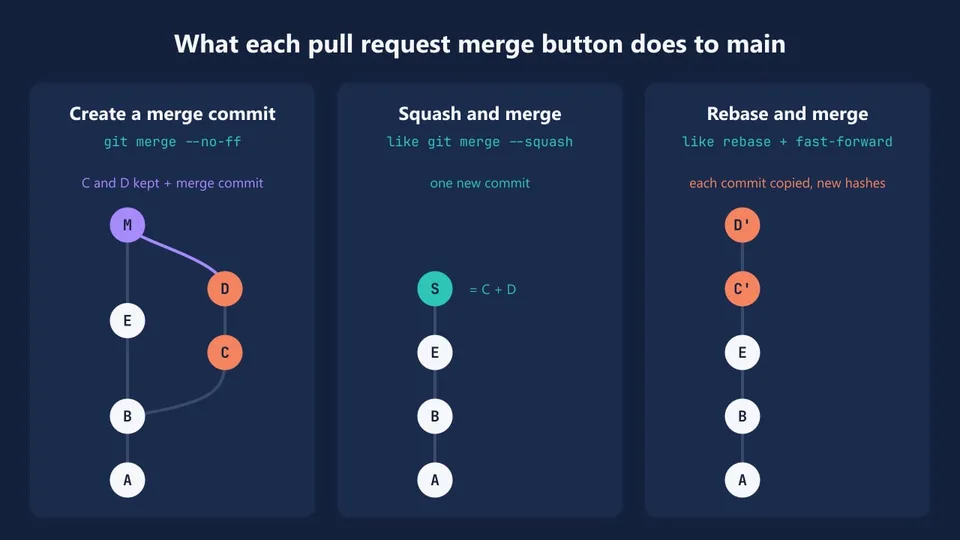
- Create a merge commit: all the commits of the branch plus a merge commit, using
--no-ff. - Squash and merge: all the changes become a single commit on the base branch. GitHub suggests a message you can edit.
- Rebase and merge: each commit is added to the base branch one by one, without a merge commit.
Two details from the GitHub docs that catch people off guard:
- Rebase and merge always creates new commit hashes and updates the committer, even when a local rebase wouldn't. The commits on
mainwon't match the ones on your branch. - After a squash and merge, don't keep working on the same branch. A later pull request from it can include the commits that were already squashed, and you end up resolving the same conflicts again. Start a new branch from the updated
main.
Squash and merge is a common default for small pull requests: main gets one commit per feature, and the messy commits stay on the branch.
FAQ
Is git rebase better than merge?
No, they're for different situations. Rebase gives a cleaner, linear history and is best for updating and cleaning up your own branch. Merge keeps the real history and is the safe choice on branches that other people use.
Does git rebase delete commits?
It doesn't change the original commits: it creates new ones and moves your branch to them. The old commits stay in the repository and show up in git reflog, until Git's garbage collection removes them (by default, 30 days after they're no longer on any branch).
How do I abort a git rebase?
Run git rebase --abort while the rebase is in progress (for example, stopped at a conflict). Your branch goes back to where it was before you started. If the rebase already finished, use git reset --hard ORIG_HEAD.
What's the difference between squash and fixup?
Both combine a commit with the one before it. squash keeps its message and opens the editor so you can combine the messages. fixup discards its message and keeps only the previous commit's message.
Should I rebase or merge main into my feature branch?
If the branch is only yours, rebase onto main: you get the latest changes without merge commits in your pull request. If other people push to the same branch, merge main into it, so you don't rewrite commits they already have.
Conclusion
Git rebase vs merge comes down to one question: does anyone else have these commits? If not, rebase freely to keep your branch up to date and squash it into clean commits before the pull request. If yes, merge. And if a rebase goes wrong, git rebase --abort, ORIG_HEAD and git reflog bring your branch back.
See you next time!